How to Share a Chart or Photo Without Leaking Your Data: Crop, Convert, Strip the Metadata
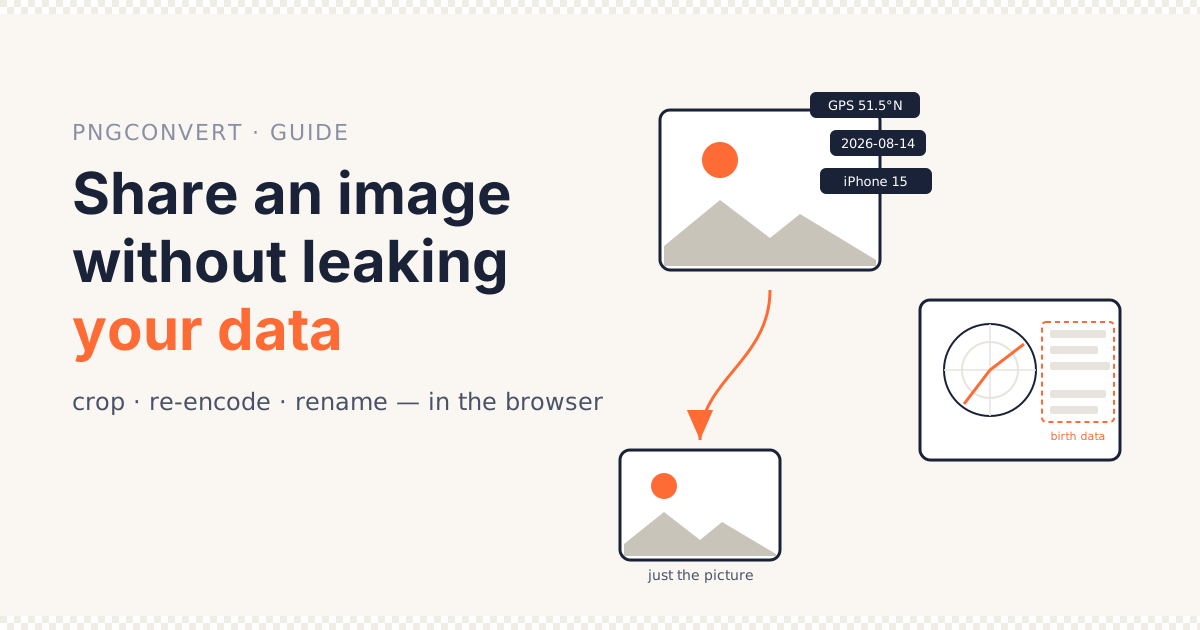
A JPG from a phone stores the latitude and longitude of where it was taken, to within a few metres, in a block of metadata most viewers never show. A chart generated from someone’s birth details prints those details next to the chart. A screenshot includes the notification that arrived while you took it.
None of that is a bug. It is what the file is. The question before you share is which of it you meant to send — and the answer is usually “the picture, and nothing else”.
Three steps get you there: crop what is visible, re-encode to drop the hidden metadata, rename. All three happen in a browser, with the image never uploaded, using the converters on this site.
What you’ll learn
- What a photo, a generated chart and a screenshot each carry that you did not intend to send
- Why running an image through a browser converter drops its metadata
- How to check a file for GPS and other tags on Windows, Mac, or with one command
- Which platforms strip metadata for you and which pass the file on untouched
- Which format to share in, for a photo and for a chart
Quick answer: crop out anything you can read that should not travel; run the result through a browser converter (HEIC to JPG, PNG to JPG or PNG to WebP), which rebuilds the file with no metadata; rename it; check Properties → Details is blank.
What an Image Carries
Three kinds of image, three kinds of leak. They need different fixes, so it is worth knowing which one you are holding.
A phone photo: hidden metadata
Every camera and phone writes an EXIF metadata block into the JPG or HEIC: date and time to the second, make and model, lens, exposure — and, if location was on, GPS coordinates. Editing software adds XMP: the program name, sometimes an author field with a real name in it.
None of this is visible in the picture. All of it is readable by anyone who receives the file and looks.
PNG has metadata too
PNG is not exempt. The format carries text chunks — tEXt, iTXt — and
editors use them for the software name, a creation time, a comment, and sometimes the full path
of the file on your disk, username included. A chart app that saves PNG may write its own
metadata there.
HEIC carries the most
An iPhone HEIC holds everything a JPG does plus depth maps, live-photo references and the original capture metadata in more detail. It is the file to be most careful with, and the one that most needs converting anyway.
A generated chart: visible personal data
A chart made from someone’s details tends to print the details beside it. A synastry chart is the sharpest case: the free synastry chart calculator at SynastryChart compares two people’s birth charts, so the page shows two names, two birth dates, two exact birth times and two cities — and a birth time plus a birthplace is enough to identify a person.
The wheel and the aspect lines are what people want to share. The data panel is what they forget is in the frame — and unlike EXIF metadata, no converter removes it, because it is part of the picture.
A screenshot: everything else on the screen
Screenshots carry no EXIF, which lulls people. They carry the status bar, the clock, the battery, a notification banner, the other tabs, the address bar with an account ID in the URL — and a filename with the exact date and time.
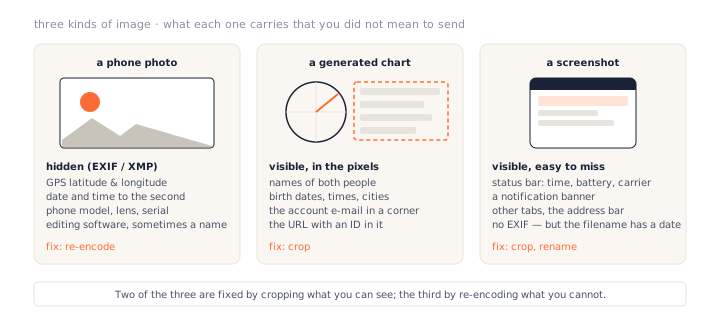
A photo leaks through metadata you cannot see; a chart and a screenshot leak through pixels you can. Cropping fixes the second kind, re-encoding fixes the first, and doing both costs a minute.
Step 1: Crop the Visible
Anything that can be read in the image travels with it, and no converter will remove text from pixels. Cropping is the only fix, and it comes first.
For a chart
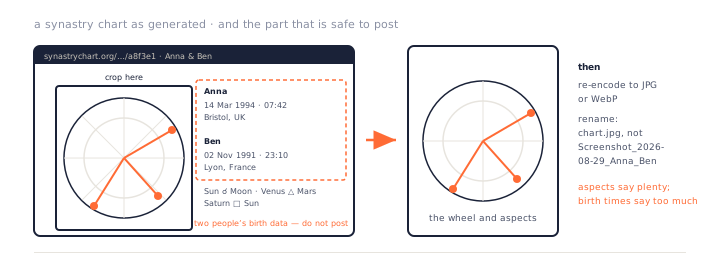
Crop to the wheel. On a synastry chart that means the circle and the coloured aspect lines between the two sets of planets — plenty to talk about — and none of the panel with the names and birth data.
A worked example
You run a chart for yourself and a partner on the compatibility calculator and want to post the result. The page shows the wheel, a list of aspects, and beside them both names, both birth dates to the day, both birth times to the minute, and both birthplaces.
Crop to the wheel and the aspect list. What remains says “Venus trine Mars” — plenty for the
caption — and nothing that would let a stranger fill in a form with someone else’s date of
birth. Then Step 2, then rename the file chart.png.
For a screenshot
Crop the status bar off the top and any dock or taskbar off the bottom. On a phone, the
built-in screenshot editor does this; on a desktop, Win+Shift+S or
Cmd+Shift+4 lets you drag the region in the first place, which is easier than
cropping afterwards.
For a photo
Cropping a photo is about content, not metadata: house numbers, licence plates, a screen in the background with something on it. Look at the edges of the frame, which is where the things you did not notice live.
📝 Note: cropping in a photo editor and saving usually keeps the EXIF block, and can add the editor’s own tags on top. Crop first, then re-encode — Step 2 handles the hidden part regardless of what the editor did.
Step 2: Re-encode to Drop the Hidden
Metadata lives in the file’s container, not in the picture. Rebuild the container and the metadata is gone with it — which is what a browser converter does by nature.
Why a canvas cannot keep a tag
A converter that runs in the browser decodes the image into a canvas: a grid of pixels, each with a red, green, blue and alpha value. There is nowhere in that grid for a GPS coordinate to go. When the canvas is encoded back into a JPG, PNG or WebP, the new file is written from scratch, with a plain header and the pixels.
Every converter on this site works this way. So does any tool that goes through a canvas or an equivalent raw-pixel step. Desktop tools that copy metadata across do so deliberately — and some do, which is why Step 3 exists.
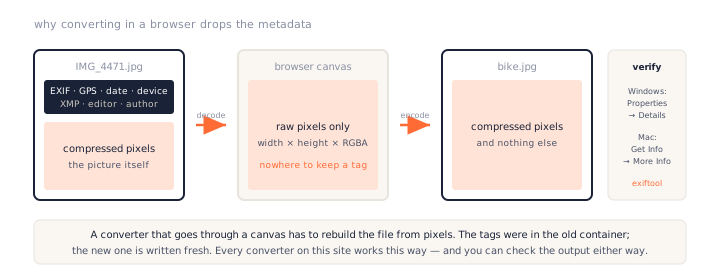
What survives a re-encode, and what does not
Gone
EXIF (date, device, lens, GPS), XMP (editor, author, keywords), IPTC captions, PNG text chunks, colour-profile metadata, thumbnails embedded in the header. All of it lives in the container, and the container is rebuilt.
Kept
The pixels — including anything printed on them, which is why cropping comes first. Also the dimensions, which are not metadata but simply the size of the picture. Nothing else.
Which converter to use
Phone photo
HEIC to JPG for an iPhone original, which also solves the “won’t open on Windows” problem in the same drop. For a JPG that is already a JPG, run it through PNG to JPG — the tool accepts JPG input and re-encodes it — at quality 90.
Chart or screenshot
These are PNGs with text in them. PNG to WebP keeps the text crisp at a fraction of the size; the lossless option keeps it pixel-identical. Or PNG to JPG if the recipient’s software is fussy about WebP.
Anything saved from the web
WebP to JPG or AVIF to PNG. These rarely carry GPS, but they can carry XMP metadata from whoever published them, and the re-encode is free.
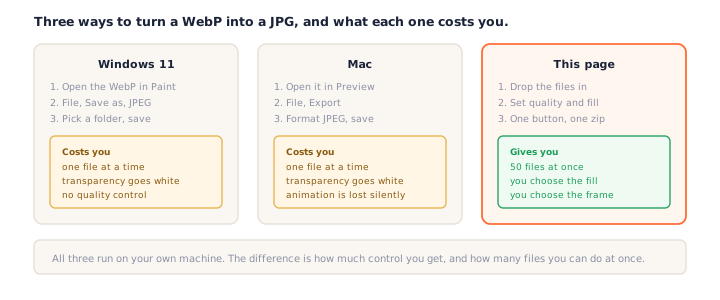
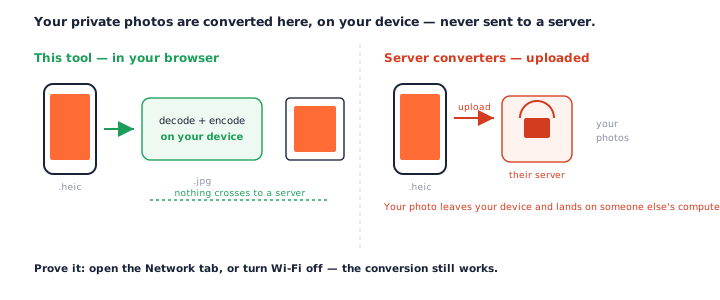
💡 Pro tip: the converters here take up to 50 files at once and return a zip. A whole album from a trip can be cleaned of location data in one drop, before any of it goes into a shared folder.
Step 3: Verify
Trust, then check. It takes ten seconds and settles it.
Windows
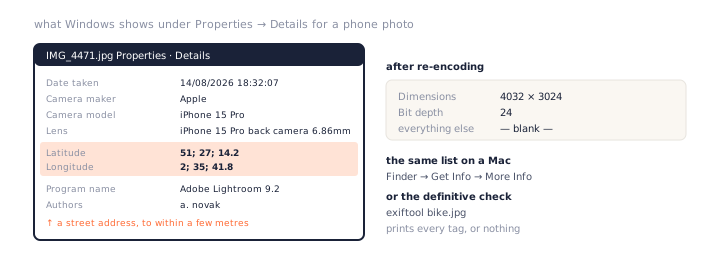
Right-click the file → Properties → Details. A phone original shows Date taken, Camera model, Latitude, Longitude, Program name. The re-encoded file shows Dimensions and Bit depth and little else.
Mac
Select the file → Cmd+I → More Info. Same idea: the original
lists the device and location; the clean file lists the size.
The definitive check
One command
exiftool photo.jpg prints every tag in the file. Run it on the original and on the
output; the difference is what you removed. It is free and runs on every platform.
What a clean file looks like
A re-encoded JPG shows a handful of lines: file size, dimensions, colour components, and the JFIF version. A re-encoded PNG shows the size, bit depth and colour type. If you see a date, a device or a coordinate, the file was not rebuilt — try a different converter.
Step 4: Rename
The filename is metadata that survives everything, because it is not in the file at all.
What a default name says
IMG_4471.jpg gives away the camera and the shot count. Screenshot
2026-08-29 at 14.02.11.png gives the date and time. A chart saved as
synastry_anna_ben.png undoes the crop in Step 1.
Where the name shows up
The filename is displayed by e-mail clients, chat apps and cloud drives before the image is even opened, and it survives every re-encode, because renaming is the one step no converter does for you.
Name it for what it shows
bike.jpg, chart.png, result.webp. Boring is the point. The
converters here name the output after the input, so rename before converting or after — just
before sending.
Which Platforms Strip Metadata, and Which Keep It
Some channels strip metadata for you. Most do not. Knowing which is which decides whether Step 2 was belt-and-braces or the only thing standing between your address and a stranger.
| Channel | EXIF / GPS on arrival | So |
|---|---|---|
| Instagram, Facebook, X, TikTok | Stripped, image re-compressed | Crop the visible; EXIF is handled |
| WhatsApp, Messenger — sent as photo | Stripped | But “send as document” keeps it |
| E-mail attachment | Kept, byte for byte | Re-encode first |
| Google Drive, Dropbox, iCloud link | Kept | Re-encode first |
| Slack, Discord, Teams | Varies by service and setting | Assume kept; re-encode |
| Your own website | Kept, and crawlable | Re-encode to WebP anyway |
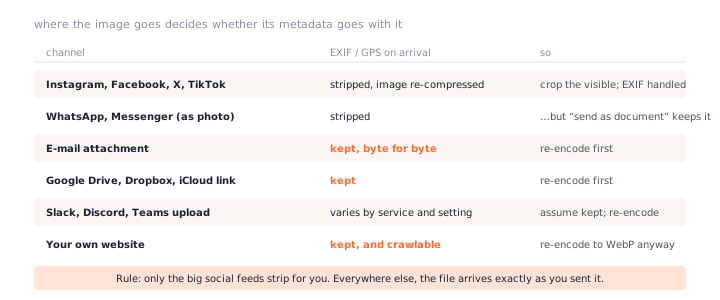
Only the large social feeds strip metadata on upload. E-mail, cloud links, chat uploads and your own site deliver the file exactly as sent — so re-encode before it goes anywhere but a feed.
Which Format to Share In
Any format a browser converter writes is free of metadata. The choice is about the picture, not the metadata.
Photos: JPG or WebP
JPG at quality 85–90 opens everywhere and is a fifth the size of the original. WebP is smaller still and fine for anything that ends up on a screen.
Charts and screenshots: PNG or WebP
Text and thin lines smear under JPG compression. Lossless WebP keeps every pixel at roughly half the PNG size; PNG itself if the recipient is on older software.
Never the original
The HEIC from the phone, the PNG the chart app saved, the raw screenshot: these are the files that carry all the metadata and all the visible data. They are the master copies. What you share is a copy made from them.
The Whole Thing in Three Steps
- Crop what you can see. Names, birth data, an e-mail in a corner, a status bar, a notification. Crop to the part you meant to share — for a chart, the wheel; for a screenshot, the content.
- Re-encode to drop what you cannot see. Run the file through a converter that rebuilds it from pixels — HEIC to JPG, PNG to JPG or PNG to WebP. EXIF GPS, timestamps and device tags do not survive the trip through a canvas.
- Rename, then check. Give it a neutral name instead of
IMG_4471orScreenshot_2026-08-29. Then open Properties → Details (Windows) or Get Info (Mac) and confirm the metadata fields are blank.
Frequently Asked Questions
Does converting an image remove its metadata?
If the converter rebuilds the file from pixels, yes. A browser canvas holds width, height and colour values and nothing else, so a converter that decodes into one and encodes back out — as every tool on this site does — writes a fresh file with no EXIF, no XMP, no GPS. Some desktop tools copy the tags across deliberately; check the output either way.
Does a screenshot contain EXIF data?
Almost never — screenshots are written by the operating system without camera tags. What they leak is visible: the clock and battery in the status bar, a notification that slid in, other browser tabs, the URL. Crop those, and rename the file, because the default name carries the date and time.
How do I share a synastry or birth chart without showing birth data?
Crop to the wheel. A synastry chart page shows both people’s names, birth dates, exact birth times and cities beside the chart, and a birth time plus place is enough to identify someone. The wheel and the aspect lines are the part worth sharing; the data panel is not. Crop, re-encode, rename.
Does Instagram or WhatsApp remove metadata for me?
The big social feeds — Instagram, Facebook, X, TikTok — strip EXIF and re-compress on upload. WhatsApp strips it when you send as a photo but keeps it when you send as a document. E-mail, cloud-drive links, Slack uploads and your own website keep the file byte for byte. Re-encode first unless you are certain of the channel.
How can I check whether an image still has GPS data?
On Windows, right-click → Properties → Details and look for Latitude and Longitude. On a Mac, Finder → Get Info → More Info. For the definitive answer, exiftool photo.jpg lists every tag in the file, or prints nothing if it is clean.
Which format is best for sharing a chart privately?
JPG or WebP for a photo; PNG or WebP for a chart with text, so the labels stay crisp. All three come out of a browser converter with no metadata. Avoid sending the original HEIC or the original PNG from the app, which still carry whatever they were saved with.
Does cropping remove metadata?
Depends on the tool. Cropping in a photo editor and saving usually keeps the EXIF, and may add the editor’s own tags. Cropping in a browser tool that re-encodes does not. To be safe, crop first, then run the result through a converter, then check.
Next Steps
Take the last photo you sent by e-mail and open its Properties. If the Latitude field is filled in, the person you sent it to has your location — and the fix for the next one is a single drop on a converter.
The tools: HEIC to JPG, PNG to JPG, PNG to WebP and WebP to JPG, all running in your browser. For getting a chart out of an app cleanly in the first place, see how to save a chart as an image. More walkthroughs are on the PNGConvert guides page.