How to Convert SVG to PNG in 3 Steps
Converting SVG to PNG is quick, and the tool above does it without uploading anything. The one choice that matters is the size, because a vector can become a PNG at any resolution you ask for.
Here are the three steps.
- Add your SVG
Drag it in, click to browse, or paste with
Ctrl+V. Add up to 50 files at once — nothing is uploaded, and the SVG is read as a vector, not sent anywhere. - Pick a size
Choose 1×, 2×, 3×, or type a custom width. Because an SVG is a vector, every size renders crisply — a 16px favicon and a 2000px poster are equally sharp. Add a background if you need one.
- Download your PNG
Click Download PNG and it saves at the exact pixel size shown. Transparency is preserved, and a batch downloads as one zip.
Any Size You Want: The Point of a Vector
This is what makes SVG to PNG different from every other image conversion. You are not copying pixels — you are drawing them fresh at whatever size you choose.
SVG has no fixed size — you set it
An SVG stores shapes, not pixels, so it has no native resolution. Converting SVG to PNG is where a size finally gets chosen, and here you choose it.
Pick 1×, 2× or 3× of the SVG’s own dimensions, or type an exact width and let the height follow the aspect ratio. A 16-pixel favicon and a 2000-pixel banner come off the same file, both perfectly sharp.
This is also why converting SVG to PNG in a batch is so forgiving: one setting rasterizes every file at the same scale, and each still renders at its own crisp resolution. There is no "source too small" problem the way there is with photos, because there is no source resolution at all.
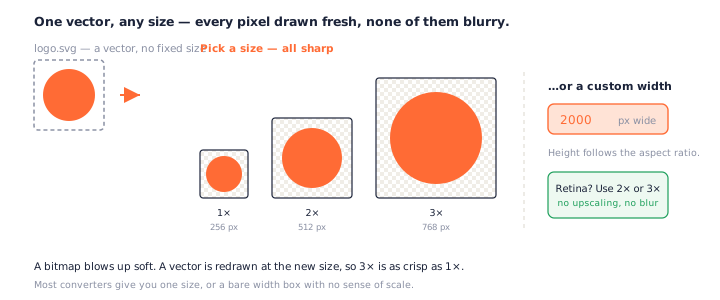
Export at 1x, 2x, 3x for retina
High-DPI screens want images at two or three times their display size. Rasterizing an SVG at 2× or 3× gives you that crisp retina PNG directly — no blur, no upscaling a bitmap after the fact. It is the single best reason to convert SVG to PNG from the vector rather than a screenshot.
What Won't Survive Rasterization
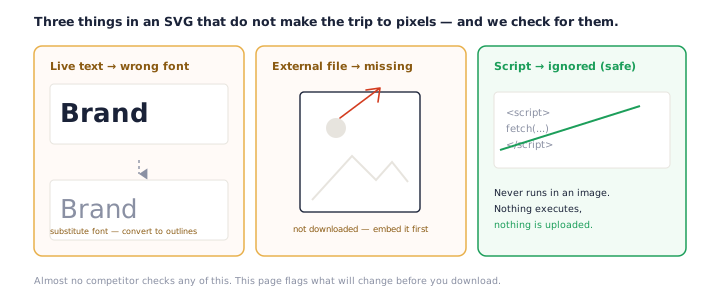
Turning a vector into pixels is mostly lossless in spirit, but a few things in an SVG do not make the trip. This page checks for them and says so — most converters do not.
Live text uses whatever font is around
Fonts are never embedded in an SVG loaded as an image, so live text renders with a substitute from your device. If the exact letterforms matter, convert text to outlines in your design tool before you convert SVG to PNG.
External images and stylesheets don't load
An SVG that points at an external image or imports a stylesheet loses those parts — the browser does not fetch them during conversion. That is good for privacy and offline use, but it means anything external should be embedded in the SVG first.
Scripts are ignored — and that's good
SVGs can carry scripts, which is a fair thing to worry about. In an image they never run, so the conversion is safe. Nothing is uploaded and nothing executes.
None of this is a reason to avoid converting SVG to PNG — most SVGs are plain shapes and convert perfectly. It is a reason to convert somewhere that checks. When a file has live text or an external link, the card says so before you download, so a surprise becomes a heads-up.
Transparent or on a Background?
SVGs are usually transparent, and you get to decide whether the PNG stays that way.
Transparency kept by default
Leave the background on Transparent and the PNG keeps full alpha — soft edges, cut-outs and all. This is what you want for a logo that has to sit on different colours.
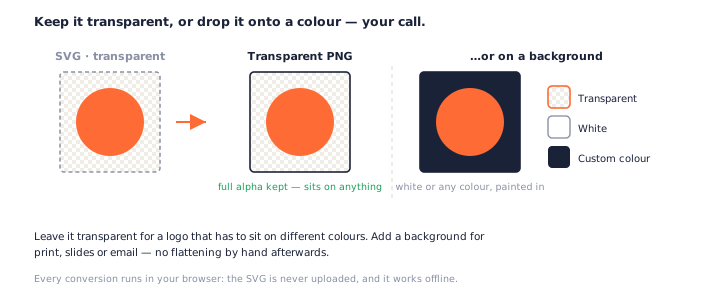
Add a solid background if you need one
Some places want a flat background — a print layout, a slide, an email. Pick White or a custom colour and it is painted behind the artwork as the SVG to PNG conversion runs, so you do not have to flatten it by hand afterwards.
SVG vs PNG: When You Actually Need a Bitmap
The two formats are not rivals — they are for different jobs, and knowing which is which tells you when to convert.
One scales, one is fixed
An SVG is resolution-independent: one small file draws at any size. A PNG is a grid of pixels at one fixed size, and blowing it up looks soft. That is the trade you make converting SVG to PNG — you give up infinite scaling to gain universal support.
Where each belongs
Keep the SVG for your website and anywhere vectors are welcome. Reach for a PNG when a tool, platform or person on the other end only takes a bitmap. Most SVG to PNG conversions happen because something downstream simply will not open an SVG.
Why Convert SVG to PNG?
Almost always, because something refuses the vector.
Software and platforms that won't take SVG
Plenty of tools still reject SVG: older editors, many office and presentation apps, some upload forms, and a lot of operating-system previews. A quick SVG to PNG conversion turns a file they refuse into one they all accept.
Social, email, and thumbnails
Social networks, email clients and content systems overwhelmingly want raster images. Exporting a PNG at the right size — often 2× for sharpness — is how a vector logo or icon ends up looking right in those places.
Handing a file to someone else
An SVG is easy to edit, which is not always what you want when you send a logo to a partner or a printer. A PNG is final: it looks the same everywhere and cannot be pulled apart. Converting SVG to PNG before you share is a simple way to hand over exactly what you see.
Private by Design: Nothing Is Uploaded
Every conversion on this page runs locally. The SVG is rasterized in your browser and the PNG is built there too — nothing is sent to a server.
Because there is no upload, the tool works offline, there is no queue, and there is no size cap. And because the SVG loads in the browser’s secure image mode, any script it carries is inert.
How to check we're telling the truth
Open your browser's developer tools, switch to the Network tab, and convert an SVG to PNG — you will not see your file leave. Or turn off your Wi-Fi and try again; it still works.
Frequently Asked Questions
Is this SVG to PNG converter really free?
Yes, completely. No signup, no watermark, no daily cap. Every SVG to PNG conversion runs on your own device, so there is nothing to meter.
Do my files get uploaded when I convert SVG to PNG?
No. The SVG is loaded as an image and rasterized in your browser, so it never leaves your device and the tool works offline. As a bonus, that same secure mode means scripts in the SVG never run. See our privacy policy.
What size will the PNG be?
Whatever you choose. A vector has no fixed size, so you set it: pick 1×, 2×, or 3× of the SVG’s own dimensions, or type an exact width. The output size is shown on each file before you download.
Does converting SVG to PNG keep transparency?
Yes. SVGs are usually transparent, and that transparency is carried straight into the PNG at full alpha. If you would rather have a solid background, pick white or a custom colour before you convert.
Why does my text look different or go missing?
Because fonts are never embedded in an SVG loaded as an image, live text rasterizes with whatever font your device has. Convert text to outlines in your design tool first if the exact shape matters — the tool warns you when a file has live text.
Can I export at 2x or 3x for retina and high-DPI screens?
Yes — that is exactly what the 2× and 3× buttons are for. Rasterizing an SVG at a higher multiple gives you a crisp high-resolution PNG with no blur, which is the main reason to convert SVG to PNG from a vector rather than upscaling a bitmap.
Can I convert multiple SVG files to PNG at once?
Yes, up to 50. Each file uses the same size and background settings, and Download All saves every PNG as one zip. Batch SVG to PNG conversion runs entirely in your browser.
SVG or PNG — which should I use?
Use the SVG wherever it is supported: it scales to any size from one small file. Convert SVG to PNG when something will not accept a vector — many apps, upload forms, email clients and social platforms only take a bitmap.
More Free Converter Tools
This SVG to PNG converter is part of a family of free, in-browser tools on pngconvert.net. Need an icon rather than a flat image? The SVG to ICO converter bundles every icon size into one file instead:
Turn PNG images into multi-size Windows icons and favicons.
JPG to ICOCrop a photo square, drop its background, and get a Windows icon.
SVG to ICODraw a vector at every icon size, and see what it loses first.
WebP to ICOEvery size in one icon — and pick the frame if it is animated.
PNG to CURA Windows cursor with the click point set exactly — test it before you download.
PNG to ICNSA complete macOS icon — all ten Retina sizes, no Mac needed.
ICO to PNGExtract every size from an ICO file as separate PNG images.
WebP to PNGUnpack WebP to a transparent PNG — one frame, every frame, or an APNG.
AVIF to PNGTurn an AVIF your software won’t open into a PNG that works everywhere.
HEIC to PNGConvert iPhone HEIC photos to PNG in your browser — nothing uploaded.
GIF to PNGOne frame, every frame as a zip, or an animated PNG — you choose.
JPG to PNGLossless PNG from a JPG — and a flat background keyed to transparency.
PNG to WebPShrink PNG to WebP and watch the size drop live — lossy or lossless.
PNG to GIFA GIF encoded in your browser — one still, or several PNGs as one animation.
WebP to GIFAnimated WebP to a GIF that plays anywhere — every frame kept, Safari included.
PNG to JPGConvert PNG to JPG — pick what fills transparent areas, see the size drop.
WebP to JPGConvert WebP to a JPG that opens anywhere — you pick what fills the transparency.
HEIC to JPGConvert iPhone HEIC photos to small, shareable JPGs — nothing uploaded.
AVIF to JPGA JPG that every app and upload form accepts — with the real size change shown.
JFIF to JPGA JFIF is already a JPEG — rename it without losing a byte, or re-encode.
Favicon GeneratorOne logo in, the favicon files you actually need out.