How to Convert PNG to JPG in 3 Steps
Converting PNG to JPG is quick, and the tool above does it without uploading anything. The part most converters get wrong is transparency, so that is where this page starts.
One quick note on names: PNG to JPG and PNG to JPEG are the same thing. JPG and JPEG are two spellings of one format — the shorter one is a leftover from old three-letter file extensions — so whichever you searched for, this is the converter you want.
First, the three steps.
- Add your PNG
Drag it in, click to browse, or paste with
Ctrl+V. Add up to 50 files at once — nothing is uploaded, and the conversion starts on your device right away. - Set quality and background
Move the quality slider and the size updates live. If the PNG is transparent, pick what fills those areas — white, black, or a custom colour — because a JPG cannot be see-through.
- Download your JPG
The size in the meter is the file you get — click Download JPG and it saves. A batch downloads as one zip.
Transparent PNG? Pick What Fills It
This is the question a PNG to JPG converter has to answer, and most answer it badly.
JPEG can't be transparent — so something has to fill the gaps
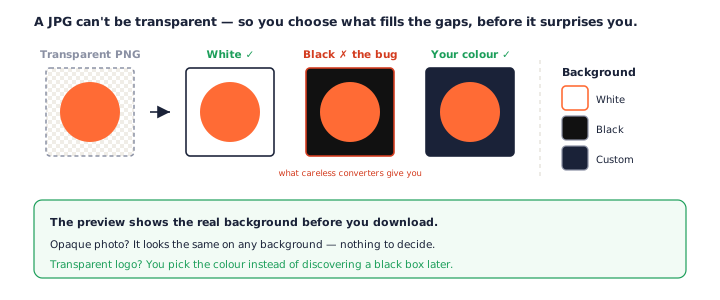
A JPG has no transparency at all. Every see-through pixel in your PNG must become a solid colour, so converting PNG to JPG is really a choice about what that colour is.
An opaque photo does not care — there are no transparent areas. But a logo, an icon, or anything with a cut-out background does, and that is exactly where a careless conversion goes wrong.
White, black, or your own colour
Here the background is a control, not a guess. It defaults to white, and you can switch it to black or any custom colour. The preview shows the real result, so you see what the transparent areas become before you download.
The black-box bug other converters ship
Draw a transparent PNG straight to a JPG and the browser fills the empty pixels with black. Plenty of converters do exactly that and never mention it — you download your logo and the background is a black rectangle. When a file is transparent, this tool says so and puts the colour in your hands.
See the Size Drop as You Choose Quality
The other reason to convert PNG to JPG is size, and here you can watch it happen.
Quality is a dial
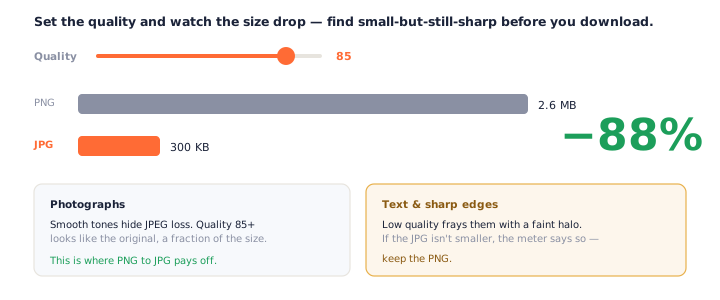
JPEG trades a little detail for a much smaller file, and the slider decides how much. Move it and the size in the meter updates live, so you can find the point where the file is small and still looks right.
When JPG won't help
JPG is not always the answer. A flat graphic or a screenshot can be smaller as a PNG, and converting it would only add compression artefacts. When that is the case, the meter shows the JPG is not smaller and suggests you keep the PNG.
Will Converting PNG to JPG Lose Quality?
Some, because JPEG is lossy — but you control how much, and for the right image it is invisible.
Where the loss shows
JPEG compresses smooth tones beautifully and struggles with hard edges. Text, thin lines and flat-colour boundaries pick up a faint halo at low quality. Photographs, which are all soft gradients, hide it almost completely.
A quality most people can't tell from the original
At quality 85 and up, a converted photo is hard to tell from the PNG at a fraction of the size. That is the sweet spot the slider starts at, and you can nudge it either way while watching the meter.
PNG vs JPG: Which Should You Use?
They are built for opposite jobs, and picking wrong is what sends people looking for a converter in the first place.
Photos versus graphics and text
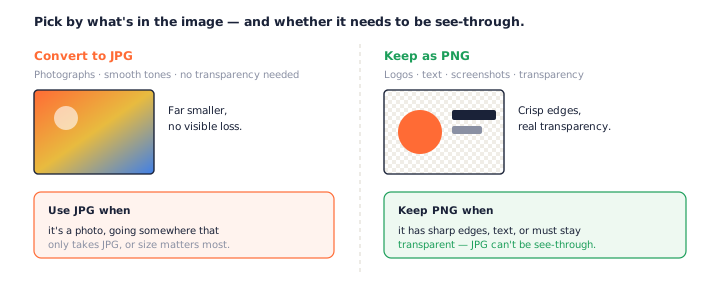
JPG is for photographs: smooth, detailed, no hard edges, and much smaller. PNG is for logos, screenshots, icons and text, where crisp edges matter and lossy compression would fuzz them.
Transparency is the deciding factor
If an image needs a transparent background, PNG is the only option of the two. Converting PNG to JPG always means giving up transparency for a solid colour, so do it when the image is going somewhere a flat background is fine.
Why Convert PNG to JPG?
Almost always for one of two reasons: a smaller file, or a place that will not take a PNG.
Smaller files, faster everything
A photo saved as PNG is needlessly huge. Converting PNG to JPG can cut it by 80% or more, which means faster pages, lighter email attachments, and uploads that actually go through.
Places that only take JPG
Some upload forms, print services, camera-roll imports and older tools accept only JPG. A quick conversion turns a rejected PNG into a file they will take.
One thing worth knowing before you convert: it is a one-way trip. Converting PNG to JPG throws away transparency and some detail for good, so keep the original PNG if you might need it again. Converting the JPG back to PNG later cannot bring the transparency or the lost detail back.
Private by Design: Nothing Is Uploaded
Every conversion on this page runs locally. The PNG is decoded and re-encoded as JPG in your browser — it is never sent to a server.
Because there is no upload, the tool works offline, there is no queue, and there is no size cap.
How to check we're telling the truth
Open your browser's developer tools, switch to the Network tab, and convert a PNG to JPG — you will not see your file leave. Or turn off your Wi-Fi and try again; it still works.
Frequently Asked Questions
Is this PNG to JPG converter really free?
Yes, completely. No signup, no watermark, no daily cap. Every PNG to JPG conversion runs on your own device, so there is nothing to meter.
Do my files get uploaded when I convert PNG to JPG?
No. The conversion runs in your browser, so the PNG never leaves your device and the tool works offline. Open your browser’s Network tab while you convert and you will not see an upload. See our privacy policy.
What happens to transparency when I convert PNG to JPG?
JPEG has no transparency, so the see-through areas have to become a solid colour. This tool lets you choose that colour — white by default — and shows the result in the preview. Many converters silently fill transparent areas with black, which is the single most common PNG to JPG surprise.
Will converting PNG to JPG lose quality?
JPEG is lossy, so some detail is traded for a smaller file, and how much is up to the quality slider. At 85 and above most images are indistinguishable from the PNG. Sharp edges, flat colour and text suffer first, which is why those belong in PNG.
How much smaller will the JPG be?
For photographs, a JPG is commonly 60–90% smaller than the PNG. For flat graphics it may be barely smaller — or larger — and the meter tells you which, so you can keep the PNG when converting would not help.
Can I set the background colour for transparent PNGs?
Yes — white, black, or any custom colour. It is painted behind the image as the PNG to JPG conversion runs, and the preview shows exactly what you will get before you download.
Can I convert multiple PNG files to JPG at once?
Yes, up to 50. Each file shows its own size meter, and Download All saves every JPG as one zip. Batch PNG to JPG conversion runs entirely in your browser.
PNG or JPG — which should I use?
Use JPG for photographs, where it is far smaller with no visible loss. Use PNG for logos, screenshots, text and anything transparent. If you need transparency at all, PNG is the only choice of the two.
More Free Converter Tools
This PNG to JPG converter is part of a family of free, in-browser tools on pngconvert.net. Want a smaller file that keeps transparency instead? Try the PNG to WebP converter. Starting from a WebP rather than a PNG? The WebP to JPG converter handles that one, transparency fill and all:
Turn PNG images into multi-size Windows icons and favicons.
JPG to ICOCrop a photo square, drop its background, and get a Windows icon.
SVG to ICODraw a vector at every icon size, and see what it loses first.
WebP to ICOEvery size in one icon — and pick the frame if it is animated.
PNG to CURA Windows cursor with the click point set exactly — test it before you download.
PNG to ICNSA complete macOS icon — all ten Retina sizes, no Mac needed.
ICO to PNGExtract every size from an ICO file as separate PNG images.
WebP to PNGUnpack WebP to a transparent PNG — one frame, every frame, or an APNG.
SVG to PNGRasterize a vector to PNG at any size — 1x, 2x, 3x or a custom width.
AVIF to PNGTurn an AVIF your software won’t open into a PNG that works everywhere.
HEIC to PNGConvert iPhone HEIC photos to PNG in your browser — nothing uploaded.
GIF to PNGOne frame, every frame as a zip, or an animated PNG — you choose.
JPG to PNGLossless PNG from a JPG — and a flat background keyed to transparency.
PNG to WebPShrink PNG to WebP and watch the size drop live — lossy or lossless.
PNG to GIFA GIF encoded in your browser — one still, or several PNGs as one animation.
WebP to GIFAnimated WebP to a GIF that plays anywhere — every frame kept, Safari included.
WebP to JPGConvert WebP to a JPG that opens anywhere — you pick what fills the transparency.
HEIC to JPGConvert iPhone HEIC photos to small, shareable JPGs — nothing uploaded.
AVIF to JPGA JPG that every app and upload form accepts — with the real size change shown.
JFIF to JPGA JFIF is already a JPEG — rename it without losing a byte, or re-encode.
Favicon GeneratorOne logo in, the favicon files you actually need out.