How to Convert PNG to WebP in 3 Steps
Converting PNG to WebP is quick, and the tool above does it without uploading anything. What makes this page different is that you see the payoff — the smaller size — before you commit to the download.
Here are the three steps.
- Add your PNG
Drag it in, click to browse, or paste with
Ctrl+V. Add up to 50 files at once — nothing is uploaded, and the conversion starts on your device the moment the file lands. - Set quality, or go lossless
Move the quality slider and the size updates live, so you can trade a few kilobytes for a little detail and see the result immediately. For crisp graphics, flip to Lossless instead.
- Download your WebP
The number in the meter is the file you get — click Download WebP and it saves. Transparency is carried over, and a batch downloads as one zip.
See How Much Smaller in Real Time
This is the part every other PNG to WebP converter skips. They let you pick a quality, convert, download, and then leave you to compare file sizes in your file manager.
That loop is slow and it hides the one fact you actually care about: did this help, and by how much? A PNG to WebP conversion is only worth doing if the file gets meaningfully smaller, and you should be able to see that answer before you commit.
Move the slider, watch the size
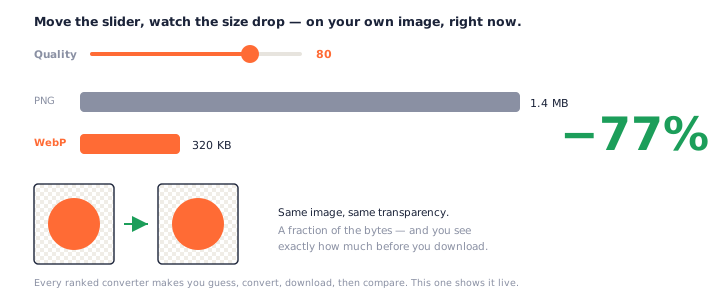
Here the size updates as you drag: 1.4 MB becomes 320 KB, and the meter says −77% before you download a thing.
The number in the meter is the exact WebP you will get, for your image, at your setting. So you can stop guessing what "quality 80" means and just watch it happen.
Drop 20 PNGs in and each one shows its own meter, because the right quality for a screenshot is not the right quality for a photo. Converting PNG to WebP one blind setting for the whole batch is how you end up with fuzzy text on some files and bloat on others.
When WebP won't actually help
WebP is not always smaller. A tiny, flat PNG — a simple logo, a two-colour icon — is already about as small as it gets, and its WebP twin can come out bigger.
When that happens, the meter says so plainly and suggests you keep the PNG. An honest "this won't help" beats a conversion that quietly made your file larger.
Lossless vs Lossy WebP: Which Should You Pick?
WebP comes in two flavours, and picking the right one is most of the job. The good news is that the picture usually decides for you.
What the quality slider really does
The default slider is lossy: it makes the file smaller by dropping detail your eye barely registers. Lower quality means a smaller file and, eventually, visible softness.
The Lossless switch is different — it keeps every pixel exactly and ignores the quality number entirely. It compresses less than aggressive lossy, but for the right image it is both perfect and small.
One surprise catches people out: lossless is not always the bigger option. For a screenshot or a logo, a lossless PNG to WebP conversion frequently beats the original PNG on size while changing nothing at all. Lossless does not mean uncompressed — it means no detail is discarded.
A simple rule you can follow
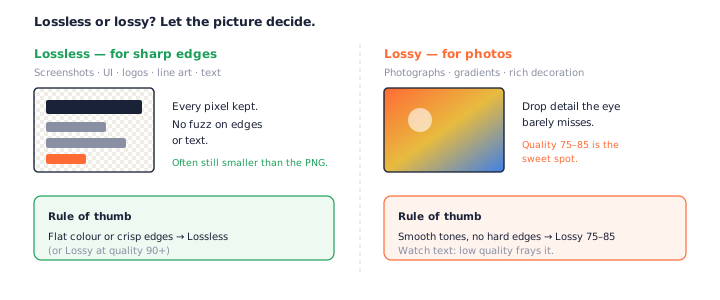
Screenshots, UI, and line art
Anything with sharp edges, flat colour, or text belongs in lossless — or lossy at quality 90 or above. Aggressive lossy frays crisp edges and makes small text look fuzzy.
Photos, gradients, and decoration
Smooth tones hide compression well, so lossy at quality 75–85 is the sweet spot. You get a large size cut with no difference most people can see. This is where converting PNG to WebP pays off the most.
A photo saved as PNG is the worst of both worlds: large, because PNG never throws anything away, and unnecessary, because no one needs a pixel-perfect copy of a photograph. That is the classic case for a lossy PNG to WebP conversion — the file shrinks dramatically and looks the same.
If you are unsure which flavour fits, try both. The meter re-encodes the moment you flip the switch, so comparing lossless against lossy for the same PNG takes one click, not two round trips through a server.
Does WebP Keep PNG Transparency?
Yes — and this is one of the best reasons to convert PNG to WebP rather than to JPEG.
Full alpha, preserved
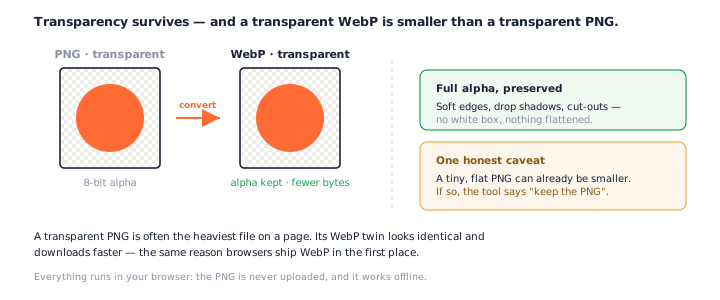
WebP supports the same 8-bit alpha channel PNG does. Soft shadows, anti-aliased edges, and fully transparent backgrounds all survive. Nothing is flattened onto a white box.
A transparent WebP is smaller than a transparent PNG
A transparent PNG is often the single heaviest asset on a page. Its WebP version looks identical and weighs a fraction as much — which is exactly why browsers started shipping WebP in the first place.
Will Converting PNG to WebP Lose Quality?
Only if you tell it to, and only by as much as you allow.
Quality is a dial, not a switch
At high quality, a lossy WebP is visually identical to the PNG for almost everyone. At low quality, you trade sharpness for size. Choose Lossless and the answer is simple: no quality is lost, the file is just larger than it would be lossy.
Where lossy WebP shows its seams
Push the quality down and the first things to suffer are hard edges and text, which pick up a faint ringing. That is the reason for the rule above: reach for lossless when the image is built from sharp lines, and lossy when it is built from smooth tones.
Why Convert PNG to WebP?
The reason is almost always speed. WebP exists to make images on the web smaller without looking worse.
Faster pages and Core Web Vitals
Images are usually the heaviest thing a page loads, so smaller images mean a faster load and a better Largest Contentful Paint. If you are chasing a PageSpeed or Core Web Vitals score, converting PNG to WebP is one of the highest-leverage changes you can make.
A hero image or a product shot dropping from 1.4 MB to a few hundred kilobytes is felt on every visit, especially on mobile connections. That is the practical reason most people search for a PNG to WebP converter in the first place: the PNGs on their site are simply too big.
Icons, exports, and design handoffs
It is not only websites. Design tools and asset pipelines increasingly prefer WebP, so converting PNG to WebP keeps exports light without giving up transparency. And because this runs locally, you can do it to a whole folder of assets without sending any of them anywhere.
Browser support is basically universal now
WebP is supported by roughly 96% of users — Chrome 32+, Firefox 65+, Safari 16+, and Edge 18+. The old reason to avoid it is gone; for the rare ancient browser, a PNG fallback covers the gap.
Private by Design: Nothing Is Uploaded
Every conversion on this page runs locally. The PNG is decoded and re-encoded as WebP in your browser — it is never sent to a server.
Because there is no upload, the tool works offline, there is no queue, and there is no size cap pushing you toward a paid plan.
How to check we're telling the truth
Open your browser's developer tools, switch to the Network tab, and convert a PNG to WebP — you will not see your file leave. Or turn off your Wi-Fi and try again; it still works. That is what "in-browser" should mean.
For sensitive work — unreleased designs, client assets, internal screenshots — that guarantee matters more than a few kilobytes. A local PNG to WebP converter lets you shrink those files without ever handing them to someone else's server.
Frequently Asked Questions
Is this PNG to WebP converter really free?
Yes, completely. No signup, no watermark, no daily cap, and no paid tier. Every PNG to WebP conversion runs on your own device, so there is nothing to meter.
Do my files get uploaded when I convert PNG to WebP?
No. The conversion runs in your browser, so the PNG never leaves your device and the tool works offline. Open your browser’s Network tab while you convert and you will not see an upload. See our privacy policy.
How much smaller will my WebP be?
For photos, lossy WebP is commonly 60–80% smaller than the PNG; for flat graphics, lossless WebP is often 20–40% smaller. But you do not have to trust a range — this page shows the exact size for your image as you move the slider, so you convert PNG to WebP and see the real number before you download.
Does converting PNG to WebP keep transparency?
Yes, at full 8-bit alpha. WebP supports the same transparency PNG does, so a transparent PNG becomes a transparent WebP with soft edges and cut-outs intact. Nothing is flattened onto white.
Will PNG to WebP lose quality?
Only if you choose lossy, and only as much as you allow. Quality is a slider: high values are visually identical to most eyes, low values trade detail for size. Choose Lossless and no quality is lost at all — it just compresses less.
Can I get a lossless WebP?
Yes — flip the Lossless switch and the tool encodes with libwebp in your browser, keeping every pixel exactly. For screenshots, logos and line art this is usually both perfect and smaller than the PNG. Note that a very small, flat PNG can already be smaller than any WebP, and the meter will tell you when that is the case.
Can I convert multiple PNG files to WebP at once?
Yes, up to 50. Each file shows its own live size meter, and Download All saves every WebP as one zip. Batch PNG to WebP conversion runs entirely in your browser like everything else here.
Which browsers support WebP?
Effectively all of them — around 96% of users. WebP works in Chrome 32+, Firefox 65+, Safari 16+, and Edge 18+. For the rare older client, keep a PNG fallback; for everyone else, the smaller WebP loads faster.
More Free Converter Tools
This PNG to WebP converter is part of a family of free, in-browser tools on pngconvert.net — including its mirror image, the WebP to PNG converter. No accounts, no uploads:
Turn PNG images into multi-size Windows icons and favicons.
JPG to ICOCrop a photo square, drop its background, and get a Windows icon.
SVG to ICODraw a vector at every icon size, and see what it loses first.
WebP to ICOEvery size in one icon — and pick the frame if it is animated.
PNG to CURA Windows cursor with the click point set exactly — test it before you download.
PNG to ICNSA complete macOS icon — all ten Retina sizes, no Mac needed.
ICO to PNGExtract every size from an ICO file as separate PNG images.
WebP to PNGUnpack WebP to a transparent PNG — one frame, every frame, or an APNG.
SVG to PNGRasterize a vector to PNG at any size — 1x, 2x, 3x or a custom width.
AVIF to PNGTurn an AVIF your software won’t open into a PNG that works everywhere.
HEIC to PNGConvert iPhone HEIC photos to PNG in your browser — nothing uploaded.
GIF to PNGOne frame, every frame as a zip, or an animated PNG — you choose.
JPG to PNGLossless PNG from a JPG — and a flat background keyed to transparency.
PNG to GIFA GIF encoded in your browser — one still, or several PNGs as one animation.
WebP to GIFAnimated WebP to a GIF that plays anywhere — every frame kept, Safari included.
PNG to JPGConvert PNG to JPG — pick what fills transparent areas, see the size drop.
WebP to JPGConvert WebP to a JPG that opens anywhere — you pick what fills the transparency.
HEIC to JPGConvert iPhone HEIC photos to small, shareable JPGs — nothing uploaded.
AVIF to JPGA JPG that every app and upload form accepts — with the real size change shown.
JFIF to JPGA JFIF is already a JPEG — rename it without losing a byte, or re-encode.
Favicon GeneratorOne logo in, the favicon files you actually need out.