How to Convert WebP to PNG in 3 Steps
Converting WebP to PNG is quick, and the tool above does it without uploading anything. The part worth understanding is what happens to an animated file, and why the PNG that comes out is often larger than the WebP that went in.
Both are covered below. First, the three steps.
- Add your WebP
Drag it in, click to browse, or paste with
Ctrl+V. Static or animated WebP files are both fine — up to 50 at once, no size limit, and nothing is uploaded. - Choose what comes out
A still image converts straight to PNG. If the WebP is animated, pick one frame, every frame as a zip, or an animated PNG that keeps moving. The choice is yours instead of a silent default.
- Download your PNG
Click Convert to PNG and the file downloads. Transparency is preserved exactly, and you can see the before-and-after size so nothing about the conversion is hidden.
Animated WebP to PNG: One Frame, or Every Frame?
This is where a WebP to PNG converter earns its keep. A WebP can be animated — a whole sequence of frames in one file — and a plain PNG cannot move. So something has to give.
Why your animation vanishes in other converters
Most tools resolve that quietly. They take the first frame, hand you a single PNG, and never mention the other frames existed. You only notice when the motion you expected is gone.
A few go the other way and force an animated PNG on you whether you wanted one or not. Neither asks what you actually need.
That gap is the reason a good WebP to PNG converter has to treat animation as a real question, not an edge case. When you drop an animated file in, the tool first tells you how many frames it found, then hands the decision to you.
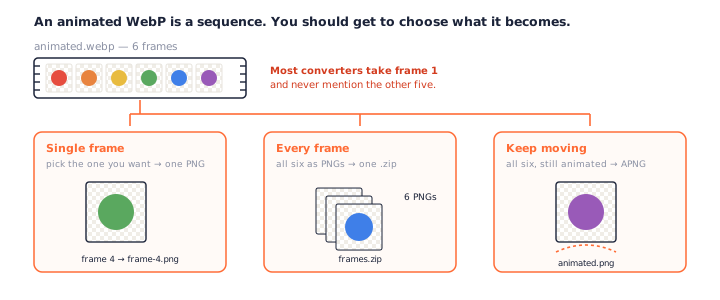
Three honest outcomes you can pick
When you convert an animated WebP to PNG here, the filmstrip appears and you choose the ending.
A single frame as one PNG
Click the frame you want and get exactly that frame as a PNG. The logo has often finished assembling a few frames in, so being able to pick beats being handed frame one.
Every frame as a ZIP of PNGs
Get all of them at once — one PNG per frame, bundled into a single zip. This is the frame extractor a design workflow usually wants, and general WebP to PNG converters skip it.
The frames are numbered in order and padded so they sort correctly, so you can drop the whole zip into an editor or a sprite pipeline without renaming anything.
Keep it moving as an APNG
Prefer to keep the animation? The tool packs every frame into an animated PNG that still plays. Same motion, a format that opens far more widely than WebP.
When your browser can't reach the frames
Reading past the first frame of an animated WebP needs the browser ImageDecoder
API, which today means Chrome or Edge. In Firefox or Safari, this WebP to PNG converter still
detects that the file is animated and still converts it — you get the first frame, and the
page says so rather than pretending the file was never animated.
Does WebP to PNG Lose Quality or Transparency?
This is the quiet worry behind most WebP to PNG searches: will the conversion wreck the image? The honest answer needs one distinction that most tools blur.
Lossy source, lossless container
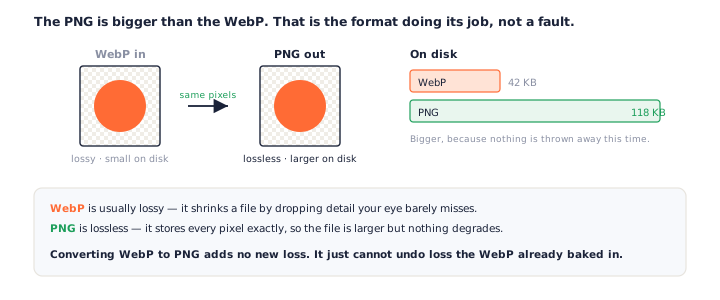
Converting WebP to PNG never adds loss — but it cannot undo loss the WebP already baked in.
Most WebP files are lossy: they were made small by throwing detail away. PNG is lossless, so it keeps every pixel it is given. Turning a lossy WebP into a PNG copies those pixels faithfully; it does not restore anything the WebP discarded. No converter can, so be wary of any that claims "lossless output" as if it recovers quality.
Transparency is preserved, exactly
Both formats support full alpha transparency, so a transparent WebP becomes a transparent PNG. Nothing is flattened onto a white box, and there is no background to remove afterwards. If you need a transparent PNG from a WebP, that is exactly what you get.
This matters most for logos and icons, where a stray white rectangle would show up the moment you place the image on a coloured background. A WebP to PNG conversion here keeps the edges clean and the alpha channel exactly as it was.
Your PNG will usually be larger — and that's correct
Because PNG keeps every pixel, the output is often two to three times the size of the WebP. That is not a bug in the WebP to PNG conversion; it is the price of a lossless file. The tool shows both sizes side by side so the trade is visible, not buried.
If you are converting a photograph and do not need transparency or a lossless original, that price buys you nothing. Send it through the WebP to JPG converter instead — a far smaller file that opens in just as many places.
WebP vs PNG: What the Difference Means for You
WebP and PNG solve different problems. Knowing which is which tells you when a WebP to PNG conversion is the right move.
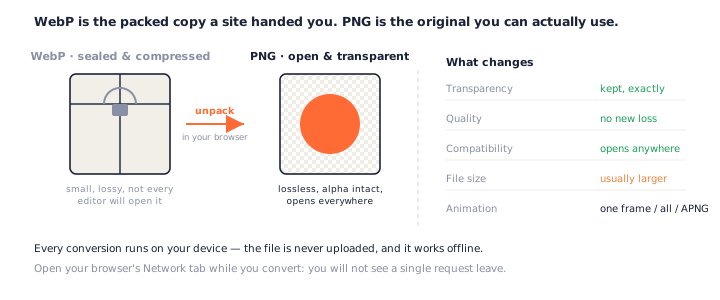
Compression: built to shrink vs built to keep
WebP was designed by Google to make web images small, and it is good at it — often 25–35% smaller than the equivalent PNG. PNG was designed to preserve, not to shrink. That single difference explains almost everything else.
Transparency and animation
Both handle transparency. Both can animate — WebP natively, PNG through APNG. So a WebP to PNG conversion loses none of those capabilities; it only changes how the file is stored and how widely it opens.
Where each format actually belongs
Keep WebP for shipping images on a website, where small files matter. Reach for PNG when you need to edit, when a program refuses WebP, or when you want a dependable transparent original. That last case is why people convert WebP to PNG in the first place.
Why Convert WebP to PNG?
WebP arrives whether you asked for it or not. Save an image from most sites today and you get a
.webp — then something downstream refuses it.
Software that still refuses WebP
Plenty of tools do not take WebP: older image editors, some office and presentation software, certain upload forms, and a few operating-system previews. Converting WebP to PNG turns an awkward file into one that opens everywhere.
Editing, transparency, and archiving
PNG is the safe format for work in progress. You want a lossless base to edit, a transparent layer that behaves, and an archive copy that will still open in ten years. A WebP to PNG converter gives you that starting point without touching a heavy desktop app.
Common places WebP trips you up
A few situations send people looking for a WebP to PNG converter again and again:
- A design tool or CMS rejects the upload because it does not accept
.webp. - You need a transparent asset for a slide deck, and the app only reads PNG.
- An animated WebP has to become either a still frame or a more widely supported APNG.
- You are archiving artwork and want a lossless master rather than a compressed copy.
All four are a one-drop job here, and all four stay on your device.
Private by Design: The File Never Leaves Your Device
Every conversion on this page runs locally. The WebP is read, decoded, and written back out as a PNG in your browser — it is never sent to a server.
Because there is no upload, the tool works offline, there is no queue, and there is no size cap waiting to push you toward a paid plan.
Local conversion is not unique on this keyword — a few other WebP to PNG converters run in the browser too, and that is a good thing rather than a selling point. What is unusual is doing it while still giving you real control over animated files and an honest account of file size.
How to check we're telling the truth
Do not take our word for it. Open your browser's developer tools, switch to the Network tab, and convert a WebP to PNG — you will not see a single request carrying your file. Or turn off your Wi-Fi and try again; it still works. That is the difference between a local converter and one that uploads.
Frequently Asked Questions
Is this WebP to PNG converter really free?
Yes, completely. There is no signup, no watermark, no daily cap, and no paid tier that unlocks the real feature. Every WebP to PNG conversion runs on your own device, so there is nothing for us to meter.
Do my files get uploaded when I convert WebP to PNG?
No. The conversion happens in your browser with the Canvas API, so the WebP never leaves your device and the tool keeps working offline. You can prove it: open your browser’s Network tab and convert — you will not see a single upload. See our privacy policy.
Will transparency be preserved?
Yes, at full 32-bit alpha. WebP and PNG both support real transparency, so a WebP with a transparent background becomes a transparent PNG. Nothing is flattened onto white, and there is no background to knock out afterwards.
Does converting WebP to PNG reduce quality?
No new quality is lost. PNG is lossless, so it stores exactly the pixels it was given. What it cannot do is rebuild detail a lossy WebP already discarded — no converter can. If you still have the original artwork, start from that instead of the WebP.
Why is my PNG larger than the original WebP?
Because PNG is lossless and most WebP files are lossy. WebP shrinks a file by dropping detail; PNG keeps every pixel. The larger PNG is the format doing its job, not a problem with the conversion. The tool shows both sizes so the trade is never a surprise.
My WebP is animated — what do I get?
Whatever you choose. Pick a single frame as one PNG, every frame as a zip of PNGs, or an animated PNG (APNG) that keeps the motion. Most converters quietly take the first frame; this one shows the whole strip and lets you decide.
Can I convert multiple WebP files to PNG at once?
Yes, up to 50. Each file gets its own card and its own choice, and Download All saves every PNG as one zip. Batch WebP to PNG conversion runs entirely in your browser like everything else here.
How do I convert PNG back to WebP?
Use the PNG to WebP converter — the mirror image of this tool. It shrinks a PNG to WebP in your browser and shows exactly how much smaller as you move the quality slider, with a lossless option for crisp graphics.
More Free Converter Tools
This WebP to PNG converter joins a family of free, in-browser tools on pngconvert.net — the same privacy promise, no accounts, no uploads:
Turn PNG images into multi-size Windows icons and favicons.
JPG to ICOCrop a photo square, drop its background, and get a Windows icon.
SVG to ICODraw a vector at every icon size, and see what it loses first.
WebP to ICOEvery size in one icon — and pick the frame if it is animated.
PNG to CURA Windows cursor with the click point set exactly — test it before you download.
PNG to ICNSA complete macOS icon — all ten Retina sizes, no Mac needed.
ICO to PNGExtract every size from an ICO file as separate PNG images.
SVG to PNGRasterize a vector to PNG at any size — 1x, 2x, 3x or a custom width.
AVIF to PNGTurn an AVIF your software won’t open into a PNG that works everywhere.
HEIC to PNGConvert iPhone HEIC photos to PNG in your browser — nothing uploaded.
GIF to PNGOne frame, every frame as a zip, or an animated PNG — you choose.
JPG to PNGLossless PNG from a JPG — and a flat background keyed to transparency.
PNG to WebPShrink PNG to WebP and watch the size drop live — lossy or lossless.
PNG to GIFA GIF encoded in your browser — one still, or several PNGs as one animation.
WebP to GIFAnimated WebP to a GIF that plays anywhere — every frame kept, Safari included.
PNG to JPGConvert PNG to JPG — pick what fills transparent areas, see the size drop.
WebP to JPGConvert WebP to a JPG that opens anywhere — you pick what fills the transparency.
HEIC to JPGConvert iPhone HEIC photos to small, shareable JPGs — nothing uploaded.
AVIF to JPGA JPG that every app and upload form accepts — with the real size change shown.
JFIF to JPGA JFIF is already a JPEG — rename it without losing a byte, or re-encode.
Favicon GeneratorOne logo in, the favicon files you actually need out.