How to Convert HEIC to PNG in 3 Steps
Converting HEIC to PNG is simple, and the tool above does it without uploading anything. Almost everyone lands here with the same problem — an iPhone photo that a computer or website will not open — so the steps are short.
- Add your HEIC photos
Drag them in, click to browse, or paste with
Ctrl+V. Add up to 50 at once. These are your private iPhone photos, so nothing is uploaded — the conversion happens on your device. - They decode right here
No browser reads HEIC on its own, so a decoder loads the first time and each photo shows a Decoding… step. A large photo takes a moment; after that they are quick.
- Download your PNG
Click Download PNG and it saves a file that opens on Windows and everywhere else. A batch downloads as one zip.
Why Won't Windows Open My HEIC Photos?
This is the question behind nearly every HEIC to PNG search, and it has a clear cause.
HEIC needs a codec Windows doesn't ship
HEIC is the format iPhones use to save photos. It is small and high quality, but it is built on HEVC — a codec Windows does not include by default — so File Explorer, older editors and many websites simply cannot read it.
The photo is fine; the software just cannot decode it. You can chase down a paid codec pack for one program, or convert HEIC to PNG once and have an image that opens in all of them.
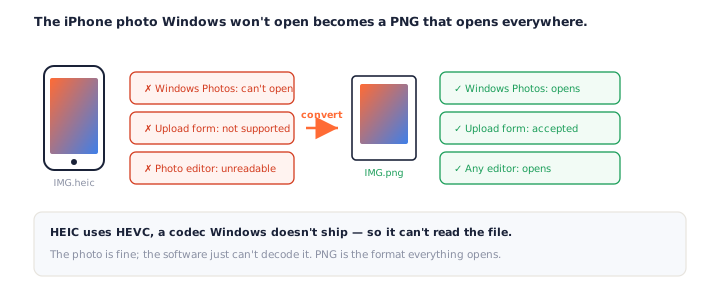
PNG opens everywhere
PNG has been universal for decades. Converting HEIC to PNG trades the small iPhone file for one that Windows, editors, forms and old devices all accept — which is exactly what you want when something has already refused the HEIC.
You end up with HEIC because, since iOS 11, iPhones save photos this way to fit more on the device. It is a smart choice on the phone and an awkward one the moment a photo has to go somewhere else. A quick HEIC to PNG conversion is the bridge, and this one runs without sending the photo anywhere.
Your Photos Stay on Your Device
HEIC files are personal photos, so where they go matters more than with any other format.
Decoded in your browser, never uploaded
Many HEIC converters send your photos to a server and promise to delete them later. This one does not send them at all. The decoder runs in your browser, so a private photo is converted without ever leaving your device — and it keeps working with your Wi-Fi off.
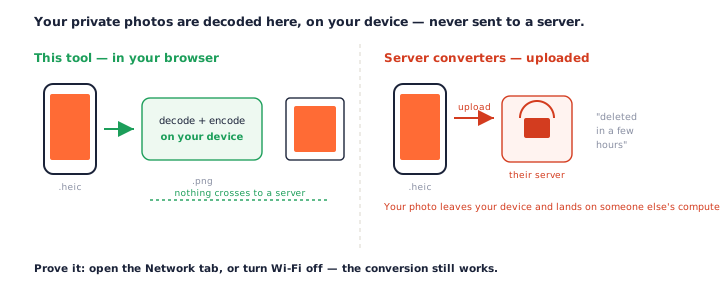
Why the first photo takes a moment
Because no browser reads HEIC on its own, a decoder has to load the first time you convert — a one-time wait of a second or two. After that, decoding is quick, and it all happens locally. The card shows a Decoding… step so nothing looks stuck.
Why Your PNG Is Bigger Than the HEIC
Expect the PNG to be much larger — often several times the size. That is normal.
A tiny compressed source, a faithful lossless copy
HEIC is one of the most efficient photo formats there is; PNG is lossless and keeps every pixel. So a 2 MB iPhone photo can become a 10 MB PNG that looks identical. The tool shows both sizes, so the jump is a fact you can see rather than a surprise.
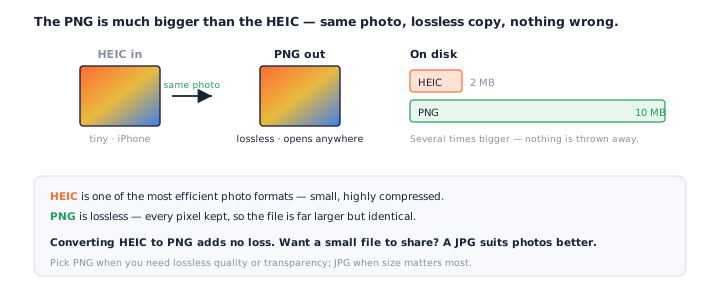
When JPG is the better target
If you are converting a photo to share or store rather than edit, JPG is usually the smarter choice — a fraction of the size with no visible loss. Reach for PNG when you need lossless quality or transparency. Converting HEIC to PNG is the right call when quality and compatibility matter more than file size.
Quality and Orientation: What Survives the Conversion
Two things people worry about, and both are handled.
No new quality is lost
PNG is lossless, so converting HEIC to PNG copies the decoded photo exactly and adds no compression of its own. It cannot restore detail the HEIC already discarded, but nothing about the conversion makes the image worse.
In practice this means the PNG on your screen is the photo as your iPhone captured it, pixel for pixel — just wrapped in a format your computer can finally open. That is the entire point of a HEIC to PNG conversion.
Portrait photos stay upright
HEIC stores which way the photo was taken, and the decoder applies it — so a portrait shot comes out upright instead of turned on its side. That rotation bug is a common complaint with lesser converters, and it is handled here.
Convert a Whole Roll of iPhone Photos
Nobody has just one HEIC. Drop up to 50 at a time and they convert together.
One at a time, so a tab doesn't run out of memory
iPhone photos are large, and decoding a pile of them at once can exhaust a browser tab. So they decode one after another, each showing its own progress, and Download All saves every PNG in a single zip. It is the calm way to clear a folder of HEIC files.
Because a batch HEIC to PNG conversion still runs entirely on your device, the size of the job is limited by your own memory, not by an upload cap or a paywall. Fifty photos at a time keeps things responsive; download that set, clear the list, and start the next.
Frequently Asked Questions
Is this HEIC to PNG converter really free?
Yes, completely. No signup, no watermark, no daily cap. Every HEIC to PNG conversion runs on your own device, so there is nothing to meter.
Do my photos get uploaded when I convert HEIC to PNG?
No — and this matters most here, because HEIC files are personal iPhone photos. They are decoded and re-encoded entirely in your browser and never sent to a server. Open the Network tab while you convert, or turn off Wi-Fi: it still works. See our privacy policy.
Why won’t Windows open my HEIC photos?
HEIC uses HEVC compression, and Windows does not include the codec for it by default, so File Explorer and older apps show an error or a blank thumbnail. Converting HEIC to PNG gives you a file Windows opens without installing anything.
Will converting HEIC to PNG lose quality?
No new quality is lost. PNG is lossless, so it keeps the decoded pixels exactly. It cannot rebuild detail the original HEIC already compressed away, but the PNG looks identical to the photo — it is just a larger file.
Why is my PNG so much bigger than the HEIC?
Because HEIC is one of the most compressed photo formats and PNG is lossless. A 2 MB iPhone photo can become a 10 MB PNG. That is the trade for a file that opens everywhere. If size matters more than lossless quality, a JPG is the better target for photos.
Does it keep the photo’s orientation?
Yes. Portrait photos come out upright — the decoder applies the rotation stored in the HEIF file, so a photo taken vertically is not turned on its side.
Can I convert a whole roll of iPhone photos at once?
Yes, up to 50 at a time. They decode one after another to keep memory in check, each shows its progress, and Download All saves every PNG as one zip.
Should I convert HEIC to PNG or to JPG?
For a photo you plan to share or store, JPG is usually the better choice — far smaller, and the loss is invisible. Choose PNG when you need lossless quality or you are editing. A dedicated HEIC to JPG tool is on the way; for now this page gives you a faithful PNG.
More Free Converter Tools
This HEIC to PNG converter is part of a family of free, in-browser tools on pngconvert.net — same privacy promise, no accounts, no uploads:
Turn PNG images into multi-size Windows icons and favicons.
JPG to ICOCrop a photo square, drop its background, and get a Windows icon.
SVG to ICODraw a vector at every icon size, and see what it loses first.
WebP to ICOEvery size in one icon — and pick the frame if it is animated.
PNG to CURA Windows cursor with the click point set exactly — test it before you download.
PNG to ICNSA complete macOS icon — all ten Retina sizes, no Mac needed.
ICO to PNGExtract every size from an ICO file as separate PNG images.
WebP to PNGUnpack WebP to a transparent PNG — one frame, every frame, or an APNG.
SVG to PNGRasterize a vector to PNG at any size — 1x, 2x, 3x or a custom width.
AVIF to PNGTurn an AVIF your software won’t open into a PNG that works everywhere.
GIF to PNGOne frame, every frame as a zip, or an animated PNG — you choose.
JPG to PNGLossless PNG from a JPG — and a flat background keyed to transparency.
PNG to WebPShrink PNG to WebP and watch the size drop live — lossy or lossless.
PNG to GIFA GIF encoded in your browser — one still, or several PNGs as one animation.
WebP to GIFAnimated WebP to a GIF that plays anywhere — every frame kept, Safari included.
PNG to JPGConvert PNG to JPG — pick what fills transparent areas, see the size drop.
WebP to JPGConvert WebP to a JPG that opens anywhere — you pick what fills the transparency.
HEIC to JPGConvert iPhone HEIC photos to small, shareable JPGs — nothing uploaded.
AVIF to JPGA JPG that every app and upload form accepts — with the real size change shown.
JFIF to JPGA JFIF is already a JPEG — rename it without losing a byte, or re-encode.
Favicon GeneratorOne logo in, the favicon files you actually need out.