How to Convert WebP to JPG in 3 Steps
You almost certainly did not choose to have a WebP file. You saved an image, and this is what landed in your downloads folder. The tool above converts WebP to JPG without uploading it anywhere, and the three steps take about ten seconds.
- Add your WebP files
Drag them in, click to browse, or paste with
Ctrl+V. Up to 50 at a time, animated ones included. Nothing is uploaded — the conversion starts on your own device. - Set quality and the fill colour
Move the quality slider to trade detail for size. If a WebP has transparent areas, pick what fills them — white, black, or any colour — because a JPG cannot be see-through.
- Convert and download
One button runs the WebP to JPG conversion on every file in the list. Grab a single JPG from its row, or take the whole batch as one zip.
One naming note before we go further: JPG and JPEG are the same format. The three-letter spelling is a leftover from an era when file extensions could not be longer, so whether you searched for WebP to JPG or WebP to JPEG, this is the converter you were looking for.
Why Is Everything I Save From Chrome a WebP?
Because the site sent one. WebP is Google's image format, and it genuinely is better at its job: the same photograph is roughly 25 to 35 percent smaller than the equivalent JPEG, which is why so much of the web now serves it. Your browser accepted it, so that is what you got.
Better on the web, worse everywhere else
The trouble starts the moment the file leaves the browser. Older photo software will not open it. Some upload forms reject it. Print shops send it back. A colleague on an ageing laptop sees a broken icon. None of that is your fault, and none of it is fixable by arguing with the file — which is why converting WebP to JPG is the fastest way out.
The one-way trip worth knowing about
Converting is lossy in one direction only. Going from WebP to JPG re-encodes the picture, so keep the original WebP if you might need it again. Converting the JPG back later will not restore what the first conversion discarded.
How to Convert WebP to JPG on Windows 11 and Mac
This is the question behind most WebP to JPG searches, and it deserves a real answer rather than a link to a tool. Your computer can already do it. Here is how, and here is where each built-in method runs out of road.
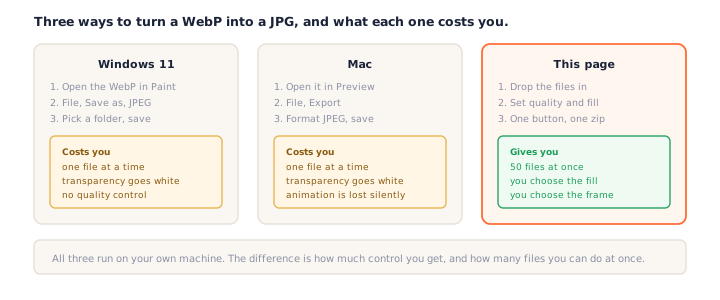
Windows 11: Paint will do it
Right-click the WebP, choose Open with, and pick Paint. Then File, Save as, and choose JPEG. Paint has handled WebP to JPG since Windows 10, so there is nothing to install and nothing to pay for.
What Paint will not do: convert more than one file at a time, let you set a quality level, or ask what to do about transparency. It flattens see-through areas to white without a word.
Mac: Preview exports to JPEG
Open the WebP in Preview, then File, Export, and set Format to JPEG. There is a quality slider in that dialog, which is one thing Preview does better than Paint.
What Preview will not do: handle a folder of files in one go, or tell you that the animated WebP you just exported has quietly become its first frame.
The browser right-click that does not work
A tip that circulates widely: right-click the image on the web page and choose Save image as,
then type .jpg in the filename. This does not convert anything. You get a WebP
file wearing a JPG extension, and the first program that reads the actual bytes will say the
file is corrupt. Renaming is not converting.
When the built-in tools are not enough
Use the WebP to JPG converter at the top of this page when you have a folder rather than a file, when a WebP has transparency and you want to decide what replaces it, or when the file is animated and you care which frame you keep. It runs locally exactly like Paint and Preview do, so choosing it costs you no privacy — it just gives you controls they do not have.
What Happens to Transparency When You Convert to JPG
WebP supports an alpha channel. JPEG has none at all. That single mismatch is where most careless WebP to JPG conversions go wrong.
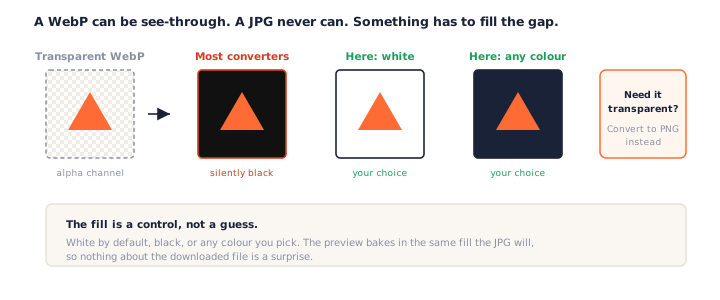
Something has to fill the gap
Every see-through pixel must become a solid colour, so converting a transparent WebP to JPG is really a decision about what that colour is. An ordinary photo has no transparent pixels and does not care. A logo, an icon, or a product shot with a cut-out background cares a great deal.
Why logos come back with black backgrounds
Draw a transparent image straight onto a JPEG and the empty pixels come out black. Plenty of converters ship exactly that behaviour and never mention it. Here, any file with real transparency gets a badge saying so, the fill colour is a visible control, and the preview bakes in the same colour the JPG will.
Or keep the transparency instead
If the background needs to stay see-through, JPG is the wrong destination. Convert to PNG and the alpha channel survives intact.
Animated WebP: You Get One Frame, or All of Them
WebP can hold an animation. JPEG holds exactly one still picture. There is no version of WebP to JPG where the motion survives, and a tool that does not say so is hiding a decision it made for you.
Two honest outcomes
Drop an animated WebP in and the row says how many frames it found. From there you pick one frame off the filmstrip and get a single JPG, or convert every frame to JPG and take them as one zip. Most WebP to JPG tools silently keep frame one; a few simply refuse the file.
If you want it to keep moving
Then you do not want a JPG. An animated PNG keeps every frame and true colour — the WebP to PNG converter makes one in a click.
A note for Firefox and Safari
Reaching past the first frame of an animation needs the browser's ImageDecoder
API, which Chrome and Edge have and others may not. Where it is missing, this page gives you
the first frame and says plainly that is what happened, rather than presenting a still as if
the file had never been animated.
WebP vs JPG: Format Differences
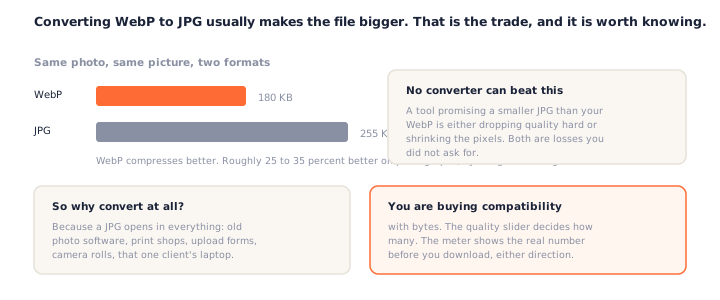
WebP is a modern image format from Google that compresses photographs about 25 to 35 percent smaller than JPEG and can also store transparency and animation. JPG is the decades-old photographic standard: larger, but readable by virtually every device and program in existence.
| WebP | JPG | |
|---|---|---|
| Size for a photograph | Smaller by 25–35% | Larger |
| Transparency | ✓ full alpha channel | ✗ none at all |
| Animation | ✓ | ✗ |
| Opens in old software | Often not | ✓ essentially always |
| Accepted by upload forms | Sometimes rejected | ✓ the safe default |
| Print shops and photo labs | Frequently refused | ✓ |
The size trade nobody mentions
Because WebP is the more efficient format, converting WebP to JPG normally produces a bigger file. That is not a flaw in the converter; it is arithmetic. Any tool promising a smaller JPG is either dropping the quality hard or shrinking the pixel dimensions. The meter on this page shows the real change in both directions.
PNGConvert vs Other WebP to JPG Converters
We measured the pages that rank for WebP to JPG. Most upload your file, and the ones with the most traffic have the least to say about what they are doing to it.
| PNGConvert | CloudConvert | ezgif | FreeConvert | |
|---|---|---|---|---|
| Runs locally, no upload | ✓ | ✗ (server) | ✗ (server) | ✗ (server) |
| Choose the transparency fill | ✓ white, black, any colour | ✗ | ✗ | ✗ |
| Animated WebP: pick the frame | ✓ any frame, or all as zip | ✗ | Separate tool | ✗ |
| Live size before download | ✓ | ✗ | ✗ | ✗ |
| Batch | ✓ 50 files, one button | Account for bigger batches | ✓ | ✓ with limits |
| Free without limits | ✓ | Daily quota | File size cap | Daily quota |
One honest note on the privacy claim: we are not the only WebP to JPG converter that works in your browser — Picflow does too, and we are not going to pretend otherwise. What we can say is that of the tools currently ranking on page one for this search, not one of them keeps your file on your own machine. That is the gap this page fills.
Check the privacy claim yourself
Open your browser's developer tools, watch the Network tab, and convert a WebP to JPG — no request carries your image. Or turn off your Wi-Fi and try again: it still works. That is the difference between local conversion and an upload with a promise to delete it later.
Frequently Asked Questions
Is this WebP to JPG converter really free?
Yes, completely. No signup, no watermark, no daily quota, no file size cap. Every WebP to JPG conversion runs on your own device, so there is no server cost to meter and nothing to charge for.
Do my files get uploaded to a server?
No. The conversion runs in your browser, so the WebP never leaves your device and the tool keeps working offline. Open your browser’s Network tab while you convert and you will not see your file go anywhere. See our privacy policy.
How do I convert WebP to JPG on Windows 11?
Open the WebP in Paint, then choose File, Save as, JPEG. That handles WebP to JPG for one file with no options. For a batch, or to control what fills transparent areas, use the converter at the top of this page — it runs locally too, so nothing is uploaded either way.
How do I save a WebP as JPG on a Mac?
Open it in Preview, then File, Export, and set Format to JPEG. Preview handles one file at a time, flattens transparency to white without asking, and drops animation silently. The tool above tells you when those things are about to happen.
What happens to transparent areas when I convert WebP to JPG?
JPEG has no alpha channel, so see-through pixels must become a solid colour. Here you choose that colour and the preview shows the result before you download. Converters that skip the question usually fill black, which is why a logo can come back as a black rectangle. If you need to keep the transparency, convert to PNG instead.
Can I convert an animated WebP to JPG?
Yes, but a JPG cannot move, so there are only two honest outcomes. Pick one frame from the filmstrip and get a single JPG, or take every frame as separate JPGs in one zip. If you want the animation to survive, an animated PNG is the format you want.
Will the JPG be smaller than the WebP?
Usually not — it will be bigger. WebP compresses photographs roughly 25 to 35 percent better than JPEG, so converting the other way costs bytes. What you buy with them is a file that opens in almost any software ever written. The meter shows the real number either way.
Can I convert several WebP files at once?
Yes, up to 50. They stack in one list, a single button converts all of them, and Download All saves the lot as one zip. Batch WebP to JPG conversion runs entirely in your browser, so a big batch never waits in a queue.
More Free Converter Tools
This WebP to JPG converter is part of a family of free, in-browser tools on pngconvert.net — same privacy promise, no accounts, no uploads. Need the transparency kept instead? Use the WebP to PNG converter:
Turn PNG images into multi-size Windows icons and favicons.
JPG to ICOCrop a photo square, drop its background, and get a Windows icon.
SVG to ICODraw a vector at every icon size, and see what it loses first.
WebP to ICOEvery size in one icon — and pick the frame if it is animated.
PNG to CURA Windows cursor with the click point set exactly — test it before you download.
PNG to ICNSA complete macOS icon — all ten Retina sizes, no Mac needed.
ICO to PNGExtract every size from an ICO file as separate PNG images.
WebP to PNGUnpack WebP to a transparent PNG — one frame, every frame, or an APNG.
SVG to PNGRasterize a vector to PNG at any size — 1x, 2x, 3x or a custom width.
AVIF to PNGTurn an AVIF your software won’t open into a PNG that works everywhere.
HEIC to PNGConvert iPhone HEIC photos to PNG in your browser — nothing uploaded.
GIF to PNGOne frame, every frame as a zip, or an animated PNG — you choose.
JPG to PNGLossless PNG from a JPG — and a flat background keyed to transparency.
PNG to WebPShrink PNG to WebP and watch the size drop live — lossy or lossless.
PNG to GIFA GIF encoded in your browser — one still, or several PNGs as one animation.
WebP to GIFAnimated WebP to a GIF that plays anywhere — every frame kept, Safari included.
PNG to JPGConvert PNG to JPG — pick what fills transparent areas, see the size drop.
HEIC to JPGConvert iPhone HEIC photos to small, shareable JPGs — nothing uploaded.
AVIF to JPGA JPG that every app and upload form accepts — with the real size change shown.
JFIF to JPGA JFIF is already a JPEG — rename it without losing a byte, or re-encode.
Favicon GeneratorOne logo in, the favicon files you actually need out.