How to Convert AVIF to JPG in 3 Steps
Most people arrive here with one stubborn file: a picture saved from a website that an app, a form or a printer will not take. Converting AVIF to JPG fixes that in a few seconds, and the tool above does it without sending anything to a server.
AVIF to JPEG and AVIF to JPG mean the same thing. JPG and JPEG are two spellings of one format.
- Add your AVIF files
Drag them into the box above, click to browse, or paste with
Ctrl+V. Add up to 50 at once. Each row shows the size of the file and flags anything transparent or animated before you convert. - Pick the quality and the fill
Quality 85 suits most photos. If a file has see-through areas, choose what fills them — white, black or any colour — because a JPG cannot store transparency.
- Convert and download
Press Convert to JPG. Every row reports the new size against the AVIF, then downloads on its own or with the rest in one zip.
Batch AVIF to JPG conversion works the same way. Drop in a folder's worth of AVIF files, press the one button, and take them away as a single zip.
AVIF to JPG on Windows, Mac, iPhone and Android
The converter runs in the browser, so the steps are the same on every device. There is nothing to install and no app store to visit — open this page in Chrome, Edge, Firefox or Safari.
On a Windows or Mac computer, drag the files from a folder onto the box. The finished JPGs land in your Downloads folder, named after the originals.
On an iPhone or Android phone, tap the box and pick the AVIF from Files or your photo library. The AVIF to JPG conversion still happens on the phone itself, which keeps private pictures off other people's servers.
Desktop apps can do it too, but only if they open AVIF in the first place. That is often the very problem that brought you here, so converting AVIF to JPG in a browser is the route that works everywhere.
Why Did My Image Save as AVIF?
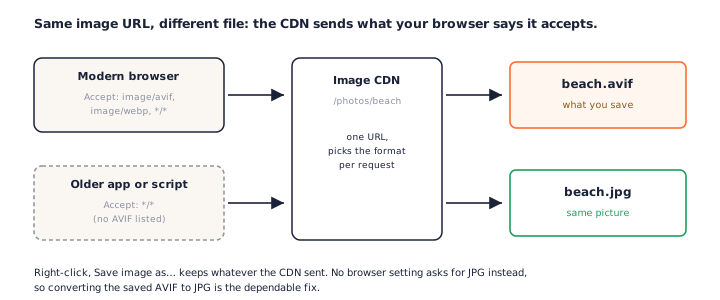
Because the website chose to send you one. You clicked an ordinary photo, but the server behind it delivered an AVIF — and Save image as keeps exactly what arrived.
The image server picks the format for you
Large sites store photos once and let an image CDN convert them on request. Every time your
browser asks for a picture, it lists the formats it can display in a request header called
Accept. Modern browsers include image/avif in that list.
The CDN reads the list and sends the smallest format your browser accepts. Ask for the very same URL from an older program and you get a JPEG instead. We checked this with Unsplash, Cloudinary and imgix: one URL, two different files, decided only by that header.
There is no setting to ask for JPG instead
Chrome, Edge, Firefox and Safari have no option for "save pictures as JPG". The format is settled before the file reaches you. The same mechanism also explains WebP downloads — if that is what you have, convert WebP to JPG the same way.
So the dependable fix is the one on this page: keep the AVIF you saved and convert AVIF to JPG when something refuses it.
Will the JPG Be Bigger Than the AVIF?
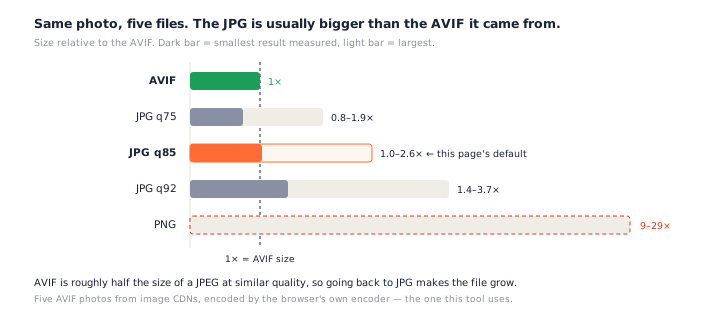
Usually, yes — and this AVIF to JPG converter tells you by how much instead of hiding it. AVIF is the newer, more efficient format, so the same photo takes more bytes as a JPEG.
An independent test of 600 images found AVIF files a median 50.3% smaller than MozJPEG at matched quality (ctrl.blog). Turning AVIF back into JPG gives that saving away.
What we measured
We converted five AVIF photos served by real image CDNs, using the browser's own encoder — the same one this tool uses. At quality 85, this page's default, the JPG came out 1.0 to 2.6 times the size of the AVIF. Quality 75 ranged from 24% smaller to 1.9 times; quality 92 ran 1.4 to 3.7 times.
A PNG of the same photo was 9 to 29 times larger than the AVIF. That is why JPG, not PNG, is the right target for photographs.
Can you convert AVIF to JPG without losing quality?
Not in the strict sense. Both formats are lossy, so the picture is compressed a second time. Between quality 85 and 92 the result is indistinguishable from the AVIF on screen.
Watch out for converters that promise "lossless JPG" or a smaller file every time. Neither is possible here, and several of the pages we tested made one claim or the other.
What Happens to Transparency, Animation and Colour
A JPG stores less than an AVIF can, so a few things change on the way through. Each row in the AVIF to JPG converter tells you which of them apply to that file.
Transparent areas get a fill colour
AVIF supports transparency; JPEG does not. Draw a see-through image straight to JPEG and the empty pixels usually turn black. Here you choose the fill — white, black or any colour — and the preview shows exactly what the JPG will contain. The same choice exists on the PNG to JPG converter.
Animated AVIF keeps its first frame
An AVIF can hold an animation. A JPG cannot move, so an AVIF to JPG conversion keeps the first frame, and the row is marked "animated" so the result is never a surprise.
HDR and wide colour are flattened to standard colour
Some AVIF files carry HDR or wide-gamut colour. A JPG made in the browser is standard sRGB, so the brightest highlights and most saturated colours are brought into range. Ordinary web photos are already sRGB and look the same.
Metadata is not carried over
The browser's encoder writes the picture and nothing else — no camera details, no location. Usually that is a benefit. Here is what metadata a photo can carry and why removing it matters.
Which Apps Still Can't Open AVIF in 2026?
Fewer than the internet suggests — many "AVIF won't open" articles are out of date. Here is where things stand as of October 2026.
AVIF is an image format based on the AV1 video codec. It typically stores a photo at about half the size of a JPEG of similar quality, which is why websites serve it — and why the file you save may not open in older software.
| Software | Opens AVIF? | Notes |
|---|---|---|
| Chrome / Edge / Firefox | Yes | Chrome 85+, Edge 121+, Firefox 93+ |
| Safari (Mac, iPhone) | Yes | Safari 16.4 and later |
| Microsoft Office | With an add-on | Needs the free AV1 Video Extension |
| Windows Photos | May need the add-on | Depends on installed codecs |
| Photoshop | Version 26.8+ | Added in June 2025; older versions cannot |
| Lightroom Classic / GIMP | Yes | Lightroom 13+, GIMP 2.10.22+ |
| WordPress | 6.5+, if the server can | Needs AVIF support in the host's image library |
| Instagram (API uploads) | No | The publishing API accepts JPEG only |
Browsers cover about 96% of users worldwide (caniuse). The gaps are desktop software, older installs and upload systems built for JPEG — exactly where a quick AVIF to JPG conversion pays off.
If your browser is older than the versions above, this AVIF to JPG tool cannot decode the file either. It will say so by name rather than calling the file broken.
AVIF to JPG or AVIF to PNG?
AVIF to JPG and AVIF to PNG are both free here; the right one depends on what the picture is for. Photos and anything headed for an upload form belong in JPG. Logos, screenshots and images with see-through parts belong in PNG.
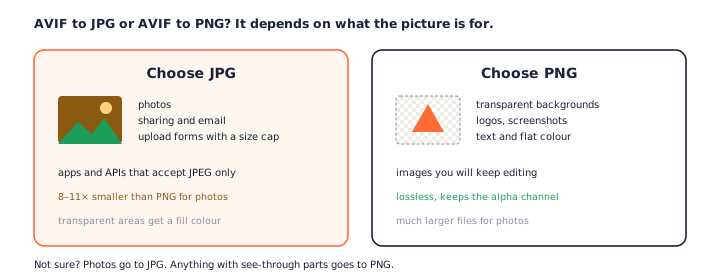
For the transparent and graphic cases, use the AVIF to PNG converter. It keeps every pixel and the alpha channel, at the cost of a much larger file. Coming from an iPhone? Its camera saves HEIC rather than AVIF — the HEIC to JPG tool handles those.
Frequently Asked Questions
Is this AVIF to JPG converter free, and is there a limit?
This AVIF to JPG converter is free, with no account and no watermark. You can add 50 files at a time and there is no file-size cap, because nothing is uploaded — your own device does the work.
Are my AVIF files uploaded anywhere?
No. Your browser decodes each AVIF and encodes the JPG on your device. The page works with the network switched off once it has loaded.
Why is my JPG bigger than the AVIF?
Because AVIF is the more efficient format. A JPEG needs roughly twice the bytes for a photo of similar quality, so going from AVIF to JPG usually makes the file grow — typically 1.0 to 2.6 times at quality 85. The tool shows the exact number for every file.
Can I convert AVIF to JPG without losing quality?
Not strictly: both formats are lossy, so converting re-compresses the picture. At quality 85 to 92 the difference is invisible for photos. If you need a pixel-exact copy, use the AVIF to PNG converter instead.
What happens to a transparent background?
JPEG has no transparency, so see-through areas are filled with the colour you pick: white by default, or black, or any custom colour. To keep the transparency itself, convert to PNG.
Can it convert an animated AVIF?
It converts the first frame. A JPG cannot move, and the row tells you when a file is animated so the still frame is never a surprise.
How do I open an AVIF file on Windows 11?
Current versions of Chrome, Edge and Firefox open AVIF directly — drag the file into a browser tab. Microsoft Office needs the free AV1 Video Extension from the Microsoft Store. Anything else that refuses the file will accept the JPG this tool makes.
How do I stop images saving as AVIF?
There is no browser switch for it. The website decides which format to send, based on what your browser says it can display, so the reliable fix is to convert the saved AVIF to JPG — which is what this page is for.
More Free Converter Tools
This AVIF to JPG converter is part of a family of free, in-browser tools on pngconvert.net — same privacy promise, no accounts, no uploads:
Turn PNG images into multi-size Windows icons and favicons.
JPG to ICOCrop a photo square, drop its background, and get a Windows icon.
SVG to ICODraw a vector at every icon size, and see what it loses first.
WebP to ICOEvery size in one icon — and pick the frame if it is animated.
PNG to CURA Windows cursor with the click point set exactly — test it before you download.
PNG to ICNSA complete macOS icon — all ten Retina sizes, no Mac needed.
ICO to PNGExtract every size from an ICO file as separate PNG images.
WebP to PNGUnpack WebP to a transparent PNG — one frame, every frame, or an APNG.
SVG to PNGRasterize a vector to PNG at any size — 1x, 2x, 3x or a custom width.
AVIF to PNGTurn an AVIF your software won’t open into a PNG that works everywhere.
HEIC to PNGConvert iPhone HEIC photos to PNG in your browser — nothing uploaded.
GIF to PNGOne frame, every frame as a zip, or an animated PNG — you choose.
JPG to PNGLossless PNG from a JPG — and a flat background keyed to transparency.
PNG to WebPShrink PNG to WebP and watch the size drop live — lossy or lossless.
PNG to GIFA GIF encoded in your browser — one still, or several PNGs as one animation.
WebP to GIFAnimated WebP to a GIF that plays anywhere — every frame kept, Safari included.
PNG to JPGConvert PNG to JPG — pick what fills transparent areas, see the size drop.
WebP to JPGConvert WebP to a JPG that opens anywhere — you pick what fills the transparency.
HEIC to JPGConvert iPhone HEIC photos to small, shareable JPGs — nothing uploaded.
JFIF to JPGA JFIF is already a JPEG — rename it without losing a byte, or re-encode.
Favicon GeneratorOne logo in, the favicon files you actually need out.