How to Convert JFIF to JPG in 3 Steps
You probably saved a picture, got a .jfif, and found that a website or an app would not take it. Converting JFIF to JPG is quicker than most converters make it look, because the file already contains a JPEG.
JFIF to JPG and JFIF to JPEG are the same job — JPG and JPEG are two spellings of one format.
- Add your JFIF files
Drag them into the box above, click to browse, or paste with
Ctrl+V— up to 50 at a time. Each file is checked on your device to see what it really contains. - Keep the lossless rename, or pick another mode
Rename · lossless is the default: a genuine JFIF keeps every byte and just becomes a .jpg. Choose Re-encode JPG to strip camera data and location, or Convert to PNG for a lossless editing copy.
- Download your JPG files
Press Convert to JPG. Each row reports what happened — "identical, 0 bytes changed" for a rename — and the files download one by one or together as a zip.
The JFIF to JPG converter checks every file before touching it. A genuine JPEG is renamed; a file that only pretends to be one is converted properly, and its row tells you which happened.
JFIF to JPG on Windows 11, Mac and iPhone without a tool
Because a rename is all a genuine JFIF needs, you can also do it by hand. It is lossless on every system — the only risk is renaming a file that is not really a JPEG, which is what the tool above checks for you.
Windows 10 and 11: in File Explorer, turn on View → Show → File name
extensions (on Windows 10, tick File name extensions on the View
tab). Right-click the file, choose Rename, change .jfif to .jpg, and
confirm the warning.
Mac: select the file in Finder, press Cmd + I, and edit the extension under Name & Extension. Finder asks whether to use .jpg — choose it.
iPhone and Android: long-press the file in the Files app, pick Rename, and change the ending. For many files at once, a JFIF to JPG batch rename here is faster than renaming each one by hand.
Opening the file in Paint or Preview and choosing "Save as JPEG" also works, but that re-encodes the picture — the slower, lossy route to the same result.
Why Are My Pictures Saving as JFIF?
Because your browser asked Windows which extension a JPEG should get, and Windows said ".jfif". Nothing is wrong with the picture. Only its name is unusual.
Where the .jfif comes from
When Chrome or Edge saves an image, they look up its file type in a Windows registry entry
called Content Type\image/jpeg, and use whatever extension it lists. On many PCs
that value reads .jfif. Some software installs and Windows updates have been
reported to set it, though Microsoft has never named a single cause.
The lookup only happens when the image's web address has no usable extension of its own —
links like …/media/abc123?format=jpg. A picture whose link ends in .jpg keeps
that name, which is why only some of your downloads turn into .jfif.
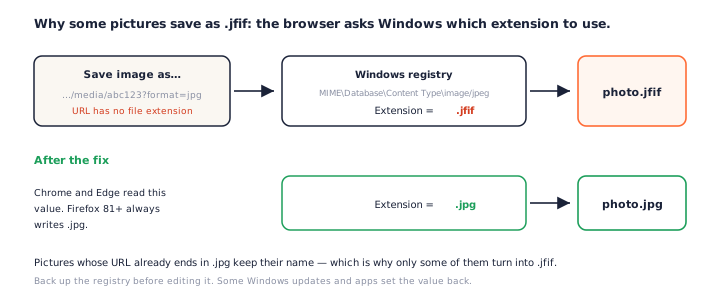
Firefox is not affected: since version 81 it always writes .jpg for JPEG images, whatever the registry says (Mozilla bug 1571247).
How to stop Windows saving images as JFIF
The permanent fix is one registry value. Editing the registry can break file associations if you change the wrong thing, so take the backup in step 2 — or simply rename files with the JFIF to JPG tool above whenever they appear.
- Press Win + R, type
regeditand press Enter. You need administrator rights. - Choose File → Export, select All, and save a backup somewhere safe.
- Go to
HKEY_CLASSES_ROOT\MIME\Database\Content Type\image/jpeg. - Double-click Extension and change
.jfifto.jpg. - Also check
HKEY_CURRENT_USER\Software\Classes\MIME\Database\Content Type\image/jpeg. If that key exists, it overrides the machine-wide one, so change it there too. - Close every browser window and start the browser again.
Some users find the value set back to .jfif after a later update or software install. If the problem returns, check the same two keys again — or keep using a JFIF to JPG rename for the odd file that slips through.
Can You Just Rename a JFIF to JPG?
Yes, for a genuine JFIF — and it is the best way to do it. Renaming keeps every byte, so there is no quality loss at all. That is the default here, and as far as we found, no other online JFIF to JPG converter offers it: every one we tested re-encodes instead.
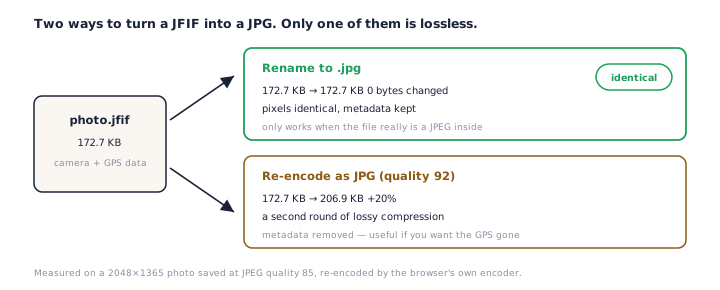
What re-encoding costs
We put a 172.7 KB photo through a browser re-encode at quality 92, a common default. The JPG came out 20% larger, compressed a second time, and stripped of its camera data. At this tool's own re-encode default of 90 it still grew 17%; at quality 100 it was more than six times the size.
So when a converter promises "JFIF to JPG with zero quality loss" and shows a quality slider, one of those two things is not true.
When a rename is not enough
Occasionally a file named .jfif is not a JPEG at all — a PNG or WebP that a website or an app mislabelled. Renaming that to .jpg would produce a broken file. This JFIF to JPG converter reads the first bytes of every file, and when they are not a JPEG's, it re-encodes instead and says so in the row.
JFIF vs JPG: What's the Difference?
JFIF (JPEG File Interchange Format) is the standard wrapper for JPEG images. A .jfif file and a .jpg file contain the same kind of compressed data; the extension is the only real difference, which is why renaming a genuine JFIF to .jpg loses nothing.
The format is defined in ITU-T T.871. A JFIF file announces itself with a short "JFIF" segment right after the start-of-image marker. Camera photos usually carry an "Exif" segment there instead, and many files carry both.
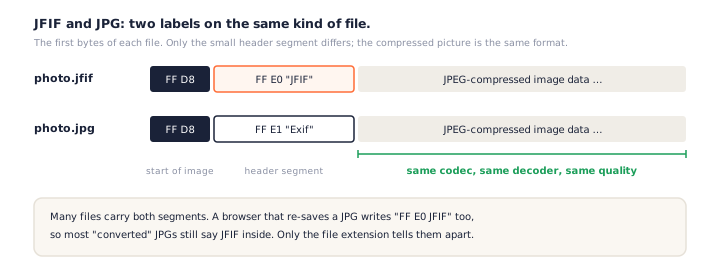
One detail undoes most "JFIF to JPG" conversions you will find online. When a browser re-saves a picture as JPEG, it writes that same JFIF segment into the new file. The converted JPG still says JFIF inside — only its name has changed, exactly as with a rename.
JFIF to PNG: When It Makes Sense
Choose Convert to PNG when you will keep editing the picture and want each later save to be lossless, or when a tool insists on PNG. Expect a much larger file: in our tests a photo's PNG was 9 to 16 times the size of the JFIF.
For sharing, uploading and everyday use, JFIF to JPG remains the better choice. A PNG will not add transparency. The background that was in the photo stays in the PNG. To cut a plain background out, use the JPG to PNG converter, which can key out a flat colour.
What Happens to Your Photo's Metadata
A JFIF to JPG rename keeps everything the file carries: camera model, date taken and, if the phone recorded one, the GPS position. The converter marks files that contain a location with a GPS location inside badge.
If you are about to share the picture, that may be the opposite of what you want. Choose Re-encode JPG and the browser writes a fresh file with the picture only. Our guide explains how to strip a photo's metadata before sharing.
Got other awkward formats from the web? Images that arrive as WebP or AVIF convert the same way with the WebP to JPG and AVIF to JPG tools.
Frequently Asked Questions
Is this JFIF to JPG converter free?
Yes. This JFIF to JPG converter has no account, no watermark and no daily limit. Add up to 50 files at a time; there is no size cap, because nothing is uploaded.
Are my files uploaded?
No. Your browser reads each file, checks its header and produces the JPG on your device. Once the page has loaded, it even works offline.
Is JFIF the same as JPG?
In practice, yes. JFIF is the standard wrapper for JPEG data, and a .jfif file holds the same kind of compressed picture as a .jpg. Only the extension, and a small header segment, differ.
Will converting JFIF to JPG lose quality?
Not with the default rename mode: a JFIF to JPG rename keeps every byte. A re-encode does compress the picture a second time; at quality 90 the change is invisible on screen, but the file usually gets bigger, not smaller.
Why does Chrome save images as JFIF?
Chrome and Edge ask Windows which extension belongs to a JPEG, and on many PCs the registry answers ".jfif". It only matters for images whose web address has no extension of its own. The fix is a one-value registry change, explained step by step above.
Does renaming keep the photo's location and camera data?
Yes. A rename keeps everything, including any GPS position, and the converter flags files that contain one. Choose Re-encode JPG to remove it — see how to share an image without its metadata.
Can I convert JFIF to PDF?
Not on this page yet. Convert to JPG first; any PDF tool that accepts JPG images will then take it.
Why won't WordPress or an upload form accept my .jfif file?
Many systems only allow the extensions .jpg, .jpeg and .jpe — WordPress itself maps nothing else to JPEG. The picture inside is fine; a JFIF to JPG rename is all it takes.
More Free Converter Tools
This JFIF to JPG converter is part of a family of free, in-browser tools on pngconvert.net — same privacy promise, no accounts, no uploads:
Turn PNG images into multi-size Windows icons and favicons.
JPG to ICOCrop a photo square, drop its background, and get a Windows icon.
SVG to ICODraw a vector at every icon size, and see what it loses first.
WebP to ICOEvery size in one icon — and pick the frame if it is animated.
PNG to CURA Windows cursor with the click point set exactly — test it before you download.
PNG to ICNSA complete macOS icon — all ten Retina sizes, no Mac needed.
ICO to PNGExtract every size from an ICO file as separate PNG images.
WebP to PNGUnpack WebP to a transparent PNG — one frame, every frame, or an APNG.
SVG to PNGRasterize a vector to PNG at any size — 1x, 2x, 3x or a custom width.
AVIF to PNGTurn an AVIF your software won’t open into a PNG that works everywhere.
HEIC to PNGConvert iPhone HEIC photos to PNG in your browser — nothing uploaded.
GIF to PNGOne frame, every frame as a zip, or an animated PNG — you choose.
JPG to PNGLossless PNG from a JPG — and a flat background keyed to transparency.
PNG to WebPShrink PNG to WebP and watch the size drop live — lossy or lossless.
PNG to GIFA GIF encoded in your browser — one still, or several PNGs as one animation.
WebP to GIFAnimated WebP to a GIF that plays anywhere — every frame kept, Safari included.
PNG to JPGConvert PNG to JPG — pick what fills transparent areas, see the size drop.
WebP to JPGConvert WebP to a JPG that opens anywhere — you pick what fills the transparency.
HEIC to JPGConvert iPhone HEIC photos to small, shareable JPGs — nothing uploaded.
AVIF to JPGA JPG that every app and upload form accepts — with the real size change shown.
Favicon GeneratorOne logo in, the favicon files you actually need out.