10 Free Browser Tools for Content Creators (No Install, No Signup) — and Which Ones Keep Your Files Local
A modern browser tab can decode a 20-megapixel photo, resample it, re-encode it as WebP and hand the file back in well under a second — with the image never leaving the machine. Every tool on this page is labelled with where that work happens, based on what the tool itself documents — and the section after the table shows you how to confirm it in the Network tab yourself.
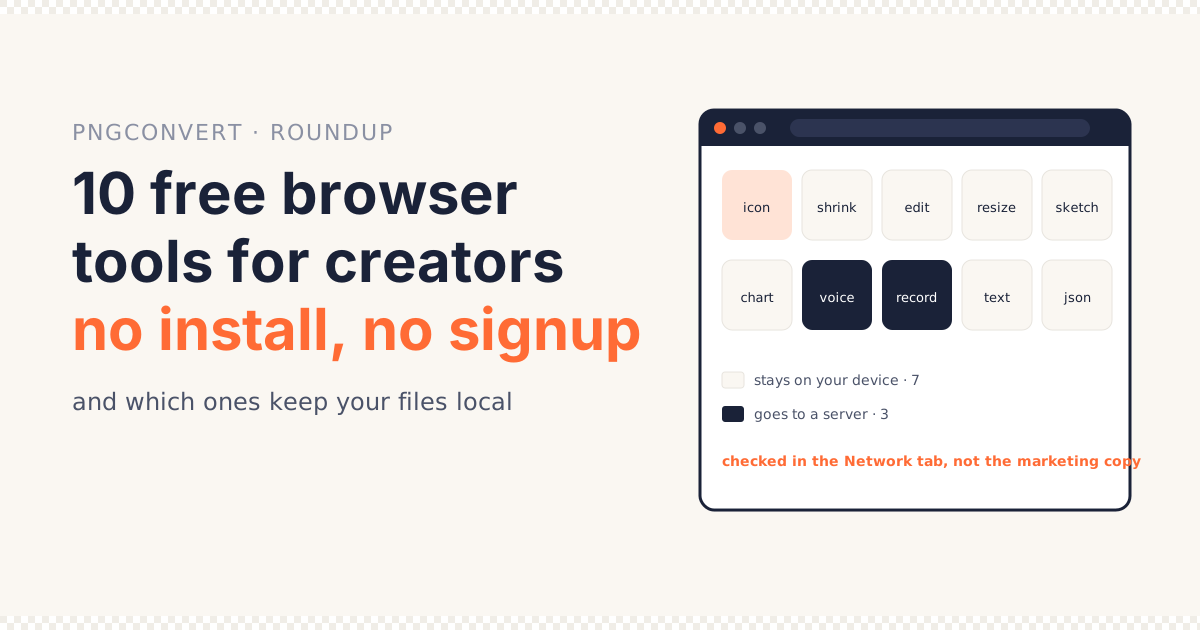
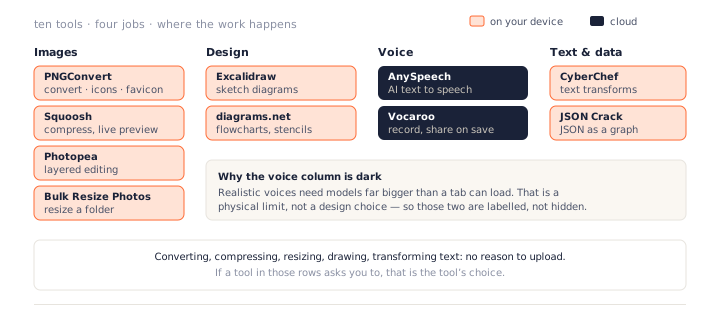
Seven of the ten keep the file on the device. Three send something to a server — and one of those is on the list precisely because what it does cannot run locally yet.
Be wary of any roundup that lists forty free browser tools and calls them all “private”. The useful question is not whether a tool is free, but where the work happens — and that is what each entry below answers first.
What you’ll learn
- Ten free browser tools for content creators, with no install and no signup
- For each one: whether your file stays on your device or goes to a server
- How to run that check yourself in 30 seconds
- When a cloud tool is the right call anyway, and what to look for
- A start-to-finish creator workflow that uses nothing else
All Ten at a Glance
“On your device” means the file is processed by JavaScript or WebAssembly in the tab, and nothing but the page itself crosses the network. “Cloud” means the tool sends your input to its server to do the work.
| Tool | What it is for | Where the work happens | Signup |
|---|---|---|---|
| PNGConvert | Image and icon conversion | On your device | No |
| Squoosh | Image compression | On your device | No |
| Photopea | Layered image editing | On your device | No |
| Bulk Resize Photos | Batch resize | On your device | No |
| Excalidraw | Sketch-style diagrams | On your device | No |
| diagrams.net | Flowcharts and architecture | On your device | No |
| AnySpeech | AI text to speech | Cloud | No (free tier) |
| Vocaroo | Quick voice recording | Cloud (on save) | No |
| CyberChef | Text and data transforms | On your device | No |
| JSON Crack | Visualise JSON | On your device | No |
Local vs Cloud: What the Label Actually Means
The phrase “free browser tools” covers two very different designs, and the page rarely tells you which one you are using.
A local browser tool
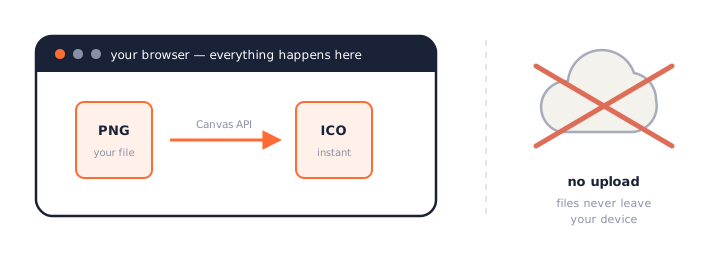
The page downloads its code once. After that, your file is read by that code inside the tab, transformed, and offered back as a download. The server only ever served the page.
Consequences: it works offline, it has no file-size meter, there is no queue, and nothing to delete later. It also costs the maker almost nothing per use, which is why local browser tools tend to stay free without tiers.
A cloud browser tool
The page is a front end. Your file or text is sent to the maker’s server, processed there, and the result is sent back. That is the only way to run anything that needs more compute or bigger models than a laptop can hold.
Consequences: it needs a connection, it may keep your input for a while, and the free tier is usually capped because every use costs the maker money.
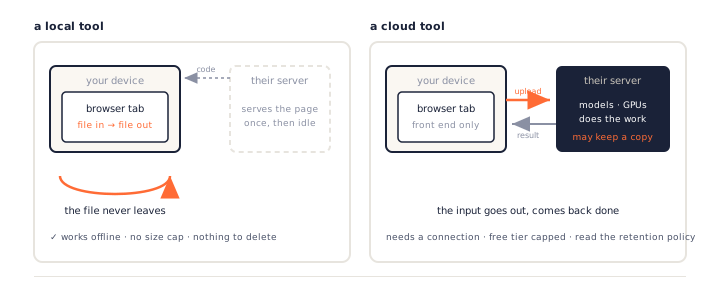
A browser tool is “local” when the server only delivers the page and your file is processed by code running in the tab. It is “cloud” when the file itself is sent to the server. Both can be free and both can be safe — but only one works with the network cable unplugged.
How to Check a Tool Yourself in 30 Seconds
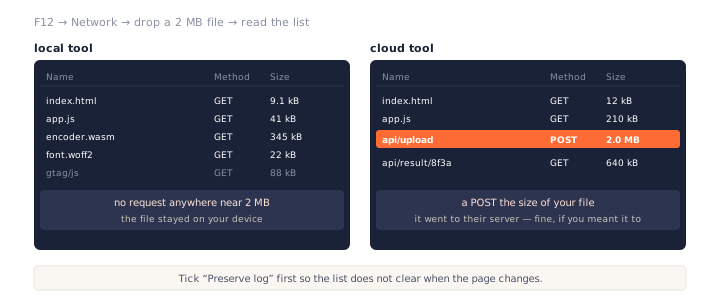
You do not have to take a browser tool’s word for it, including ours. Two checks, no technical knowledge needed.
The Network tab test
Step 1: Open developer tools
Press F12 (or Ctrl+Shift+I, Cmd+Option+I on a Mac) and click
the Network tab. Tick “Preserve log” so nothing scrolls away.
Step 2: Use the tool
Drop in a file that is at least a few hundred kilobytes, so an upload would be obvious. Run the conversion or edit as normal.
Step 3: Read the list
Look for a request whose size is close to your file’s, usually a POST. If there is
none — only small requests for scripts, fonts and analytics — the file stayed on your device.
The offline test
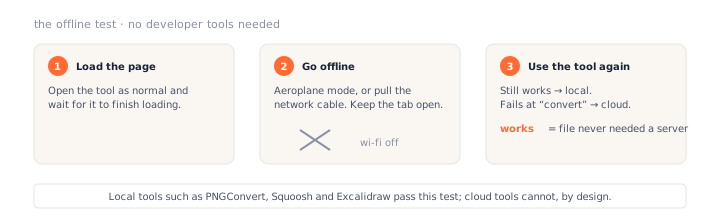
Load the page, then switch on aeroplane mode or pull the cable. Try the tool again. A local browser tool carries on; a cloud tool fails at the moment it would have uploaded.
💡 Pro tip: “no upload” and “no tracking” are different claims. A local tool can still load an analytics script that records the visit. The Network tab shows both — the file request is the one that matters for the file.
Image Browser Tools
Four browser tools for the pictures in a post: convert, compress, edit, resize. All four run on your device.
1. PNGConvert — image and icon conversion
PNGConvert is our own browser tool, so weigh this entry accordingly. It converts between PNG, JPG, WebP, AVIF, HEIC, GIF, SVG and ICO, and builds multi-size Windows icons and favicons.
Where the work happens
On your device. Decoding uses the browser’s own image codecs; encoding for ICO, GIF and APNG is hand-written JavaScript, and WebP and HEIC use WebAssembly modules served from the same site. We build it, so we can say this one with certainty: the Network tab shows the page load and nothing else.
Best for
Turning a logo into an ICO with every size Windows needs, making a favicon package, or opening the HEIC photos an iPhone sends on a PC. Batch of 50 files, zipped.
Limits
It converts; it does not edit. There is no crop tool beyond squaring a photo for an icon, and no layers.
2. Squoosh — image compression with a live preview
Squoosh, a browser tool built by Google’s Chrome team, shows the original and the compressed version side by side with a draggable divider, and updates the file size as you move the quality slider.
Where the work happens
On your device. Every codec — MozJPEG, WebP, AVIF, OxiPNG — is compiled to WebAssembly and runs in the tab, which is what makes it a true browser tool. It installs as a progressive web app and works offline.
Best for
Getting a hero image under 100 KB without guessing. The comparison slider is the fastest way to see where quality actually starts to drop.
Limits
One image at a time in the interface (a command-line version exists for batches). No ICO or animated output — for those, see entry 1.
3. Photopea — a layered editor in a tab
Photopea opens PSD, XCF, Sketch and Figma files with layers, masks and adjustment layers intact. It is the closest thing to a desktop editor that runs as a browser tool.
Where the work happens
On your device. Photopea states that files are opened and saved locally and never uploaded, and it keeps working offline once loaded. The page loads advertising, which is how it stays free.
Best for
Removing a background by hand, retouching, or opening a designer’s PSD on a machine without Photoshop.
Limits
The ads take screen space, and very large files depend on your machine’s memory rather than a server’s.
4. Bulk Resize Photos — resize a folder at once
Bulk Resize Photos is a browser tool that takes a pile of images and resizes them by percentage, longest edge, exact size or target file size.
Where the work happens
On your device. The site is explicit that images never leave the browser, and the offline test in the section above is the quickest way to see it for yourself.
Best for
Shrinking a camera roll before it goes into a post or a slide deck.
Limits
Resize only. Format conversion is basic (JPG, PNG, WebP), and there is no quality preview.
Design and Diagram Browser Tools
Two browser tools for the explainer graphic — one for sketches, one for proper flowcharts.
5. Excalidraw — diagrams that look drawn by hand
Excalidraw is a whiteboard browser tool with a deliberately sketchy style, which makes rough ideas look like rough ideas instead of finished architecture.
Where the work happens
On your device by default. The drawing lives in the tab’s local storage; nothing is sent unless you start a live-collaboration session, which is end-to-end encrypted, or use the optional share link.
Best for
A quick explainer diagram for a blog post, exported as PNG or SVG — the SVG can then go through an SVG to PNG converter at exactly the size a post needs.
Limits
Freeform by design; if you need swimlanes and UML stencils, use the next entry.
6. diagrams.net — flowcharts and architecture
diagrams.net (formerly draw.io) is the full stencil-library diagram editor: flowcharts, network diagrams, cloud-provider icon sets.
Where the work happens
On your device. This browser tool saves diagrams to a local file, or to a cloud drive only if you connect one. The editor itself makes no calls with your diagram in them.
Best for
Documentation diagrams that need to be edited again next year — the .drawio file
is plain XML.
Limits
The interface is dense. Excalidraw is the faster choice for a one-off sketch.
Voice and Audio Browser Tools
This is the category where the local-versus-cloud line is drawn by physics rather than by policy. Realistic speech synthesis needs models far larger than a browser can load — so the two browser tools here are honest cloud tools, listed because they still clear the “no install, no signup” bar.
7. AnySpeech — AI text to speech with 100+ voices
AnySpeech is a browser tool that turns typed or pasted text into natural-sounding speech, with over 100 voices across more than 50 languages, and downloads the result as an audio file. The free tier needs no account.
Where the work happens
Cloud. The text is sent to AnySpeech’s servers, where neural voice models generate the audio; the finished file is returned to the tab. That is expected — see the FAQ on why realistic voices cannot run locally — and the tool says so rather than implying otherwise.
Best for
A voiceover for a tutorial video or a short-form clip when you do not want to record yourself, an audio version of a post, or checking how a sentence sounds in a language you do not speak. The voice list is filtered by language and style, so a Korean cooking-vlog voice and an American news-read voice are a click apart.
Limits
The free tier caps output; longer projects and voice cloning are paid. Because the text goes to a server, keep confidential scripts for a local recorder instead.
8. Vocaroo — record a voice note and share it
Vocaroo is a browser tool that is one big record button. Record, stop, get a link or a download.
Where the work happens
Recording happens in the tab; the audio is uploaded only when you press save to get a share link. Download instead and nothing leaves.
Best for
Sending a 30-second explanation to a collaborator faster than typing it.
Limits
No editing, no trimming. It is a recorder, not an audio workstation.
Text and Data Browser Tools
Two browser tools for the unglamorous part: cleaning up text and making a data structure legible.
9. CyberChef — every text transform in one place
CyberChef is a browser tool that chains operations — decode Base64, pretty-print JSON, convert timestamps, extract URLs from a wall of text — into a “recipe” you can save and re-run.
Where the work happens
On your device. It is a static page published on GitHub by its authors; you can download the single HTML file and run it with no server at all.
Best for
Cleaning up scraped text, decoding a tracking URL, or turning a CSV into JSON without a script.
Limits
Four hundred operations is a lot of menu. Search for the one you need rather than browsing.
10. JSON Crack — see the shape of a JSON file
JSON Crack is a browser tool that draws a JSON, YAML or CSV document as a node graph, so a nested structure becomes a picture instead of a scroll.
Where the work happens
On your device for parsing and drawing. Cloud-save and AI features exist behind an optional account; the core browser tool sends nothing.
Best for
Explaining an API response in a post — export the graph as PNG and it drops straight in.
Limits
Very large documents (tens of thousands of nodes) slow the graph down; collapse branches first.
When a Cloud Tool Is the Right Call — and What to Check
Three of the ten browser tools above use a server, and that is not a mark against them. Some work cannot be done any other way. What matters is knowing you are using one, and checking four things before you paste anything in.
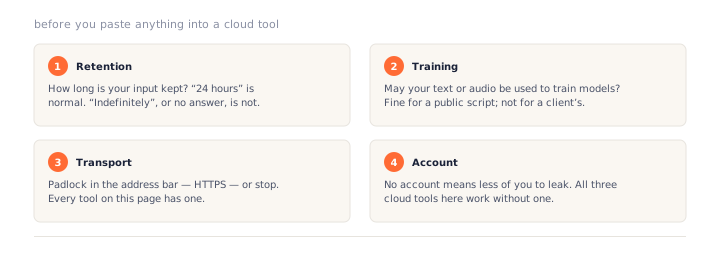
The four checks
- Retention. How long is your input kept? A day is normal; “indefinitely” or silence is a reason to look elsewhere.
- Training. Does the policy say your text or audio may be used to train models? For a public blog script it may not matter; for a client script it does.
- Transport. The address bar shows a padlock — HTTPS — or you stop.
- Account. A tool that works without one has less of your data to leak. All three cloud tools here do.
What cannot run locally yet
Neural text to speech, speech recognition at transcription quality, generative image models and AI background removal all need models measured in gigabytes and a GPU to respond in seconds. Browsers are getting closer — WebGPU exists — but for now those live on servers.
The reverse is also true: image conversion, compression, resizing, diagramming and text transforms have no business uploading your file. If a browser tool in those categories asks you to upload, it is the tool’s design choice, not a technical need.
Rule of thumb: if the job is converting, compressing, resizing or drawing, a free browser tool should do it on your device. If the job needs an AI model — realistic voices, transcription, generation — expect the cloud, and read the retention policy before you paste.
A Creator Workflow Using Only These Tools
Here is a short tutorial post, from draft to published, using only the browser tools above — nothing installed and nothing paid.
1. Diagram the idea
Sketch the explainer in Excalidraw and export as SVG. Run it through the SVG to PNG converter at 1440 pixels wide for the article and 720 for the thumbnail.
2. Prepare the photos
Drop the phone photos on Bulk Resize Photos to bring the longest edge to 1600 pixels, then on Squoosh to land each one under 120 KB as WebP. HEIC from an iPhone goes through HEIC to JPG first.
3. Make the site assets
One logo PNG into the favicon generator gives the favicon.ico, the Apple touch icon and the manifest PNGs. If the post ships a downloadable Windows tool, the same logo becomes its multi-size ICO.
4. Record the voiceover
Paste the final script into AnySpeech, pick a voice that matches the audience, and download the audio. For a quick author’s note in your own voice, Vocaroo, downloaded rather than shared.
5. Check the data
If the post includes an API example, paste the response into JSON Crack and export the graph; tidy any pasted logs in CyberChef first.
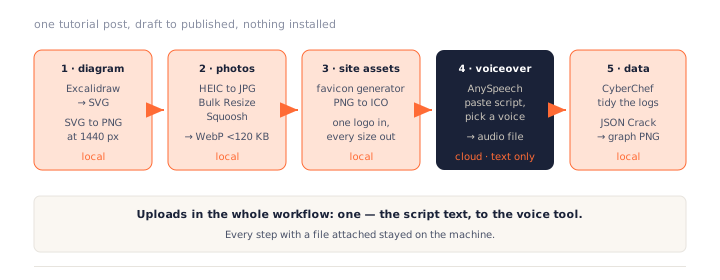
Total uploads in that workflow: one — the script text sent to the voice tool. Everything with a file attached stayed on the machine.
Frequently Asked Questions
How do I know a free browser tool really doesn’t upload my file?
Open the browser’s developer tools (F12), switch to the Network tab, then use the tool. If no request carries your file — no POST with a size close to the file’s — it stayed on your device. A second test: load the page, disconnect from the internet, and try the tool again. Tools that process locally keep working.
Is a tool that runs in the browser always private?
Only for the file. The page can still load analytics or ads, which see the visit but not the image. Read the privacy policy for what the site logs, and prefer tools that state plainly where processing happens — PNGConvert, Squoosh and Excalidraw all do.
Why can’t AI text to speech run in the browser too?
The neural voice models behind natural-sounding speech are hundreds of megabytes to several gigabytes and need a GPU to respond quickly. Browser-side speech synthesis exists (the Web Speech API) but sounds robotic. Cloud tools such as AnySpeech trade a server round-trip for 100+ realistic voices.
Are these tools free without a catch?
The seven local tools are free with no tiers: they cost their makers almost nothing per use, because your device does the work. The three cloud tools have free tiers with limits — AnySpeech’s free tier, for example, does not require an account but caps how much audio you generate.
Do browser tools work offline?
The local ones do, once the page has loaded. PNGConvert, Squoosh, Photopea, Excalidraw and CyberChef all keep working with the network cable pulled; several install as progressive web apps so they open from the desktop. Cloud tools need a connection every time.
What is the best free browser tool to convert PNG to ICO?
PNGConvert’s PNG to ICO converter builds a multi-size icon (16 to 256 pixels) entirely in the tab, handles up to 50 files at once, and never uploads. Its sister pages cover JPG, SVG and WebP sources, and the reverse direction with ICO to PNG.
Can I use these for client work?
Local tools are the safer choice for anything under NDA, because the file never leaves the machine. For cloud tools, check the retention policy: how long uploaded text or audio is kept, and whether it is used for training. If the policy does not say, assume it is kept.
Next Steps
Bookmark the two or three browser tools that match your week, and run the Network tab test once on each — it takes less time than reading this sentence, and afterwards you know rather than trust.
If icons are the job, the PNG to ICO converter is where this site started, and the guides on converting PNG to ICO on Windows and JPG to ICO on Windows go deeper. More walkthroughs are on the PNGConvert guides page.